> ## Documentation Index
> Fetch the complete documentation index at: https://docs.teio.me/llms.txt
> Use this file to discover all available pages before exploring further.

# Claude Code Desktop

> 在 Claude Code 桌面应用中配置 Teio API

> Claude Code 桌面客户端是 Anthropic 官方提供的独立 GUI 应用，无需终端或编辑器即可使用 Claude 进行 AI 编程。

## 前置条件

* 已 [创建 API 密钥](/create-token)

## 安装

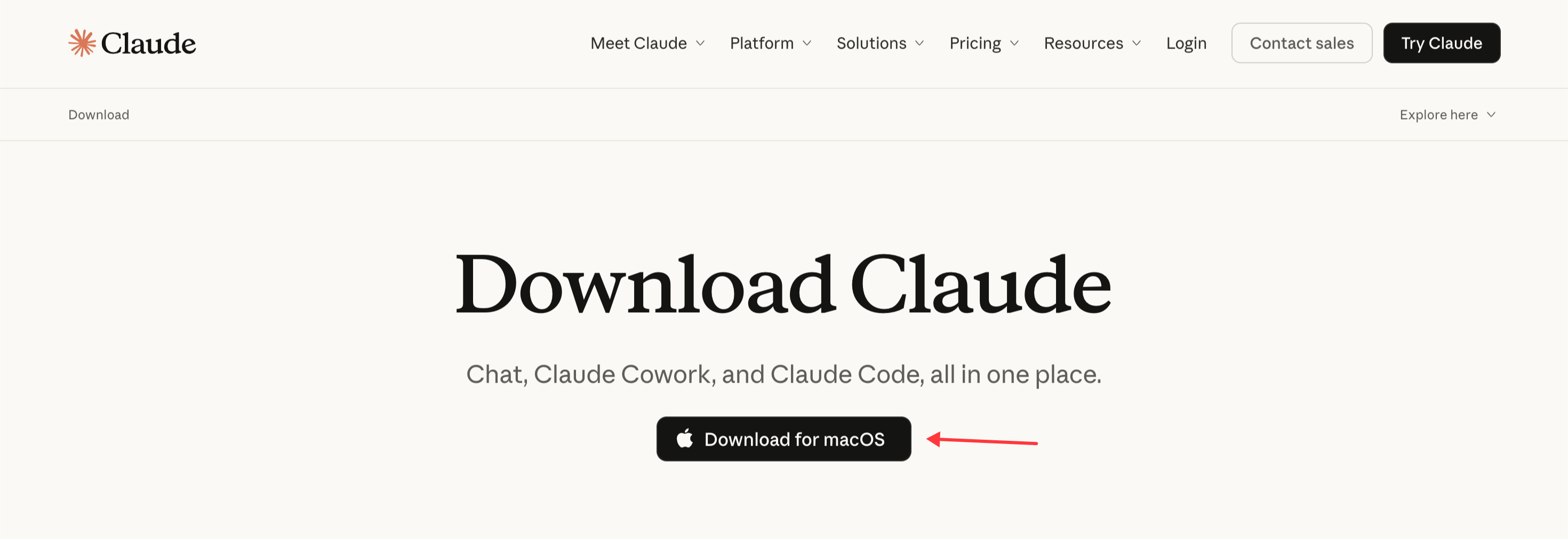
前往 [Claude Code 下载页面](https://claude.com/download)，下载对应系统的安装包，按提示完成安装。

<Frame>
  <img src="https://mintcdn.com/cdhyzxwl/RFLZqC0uZxKV3SQo/images/macshot-clipboard-537F9550-A575-4E55-9CD6-D863E50D8BC5.png?fit=max&auto=format&n=RFLZqC0uZxKV3SQo&q=85&s=dfd4dbb66e7a7fa1a345c8c4c08b5f55" alt="Macshot Clipboard 537F9550 A575 4E55 9CD6 D863E50D8BC5" width="2940" height="1010" data-path="images/macshot-clipboard-537F9550-A575-4E55-9CD6-D863E50D8BC5.png" />
</Frame>

## 配置

安装完成后打开 Claude 桌面版，停在**登录页不登录**，按以下步骤配置第三方 API：

<Tabs>
  <Tab title="Mac">
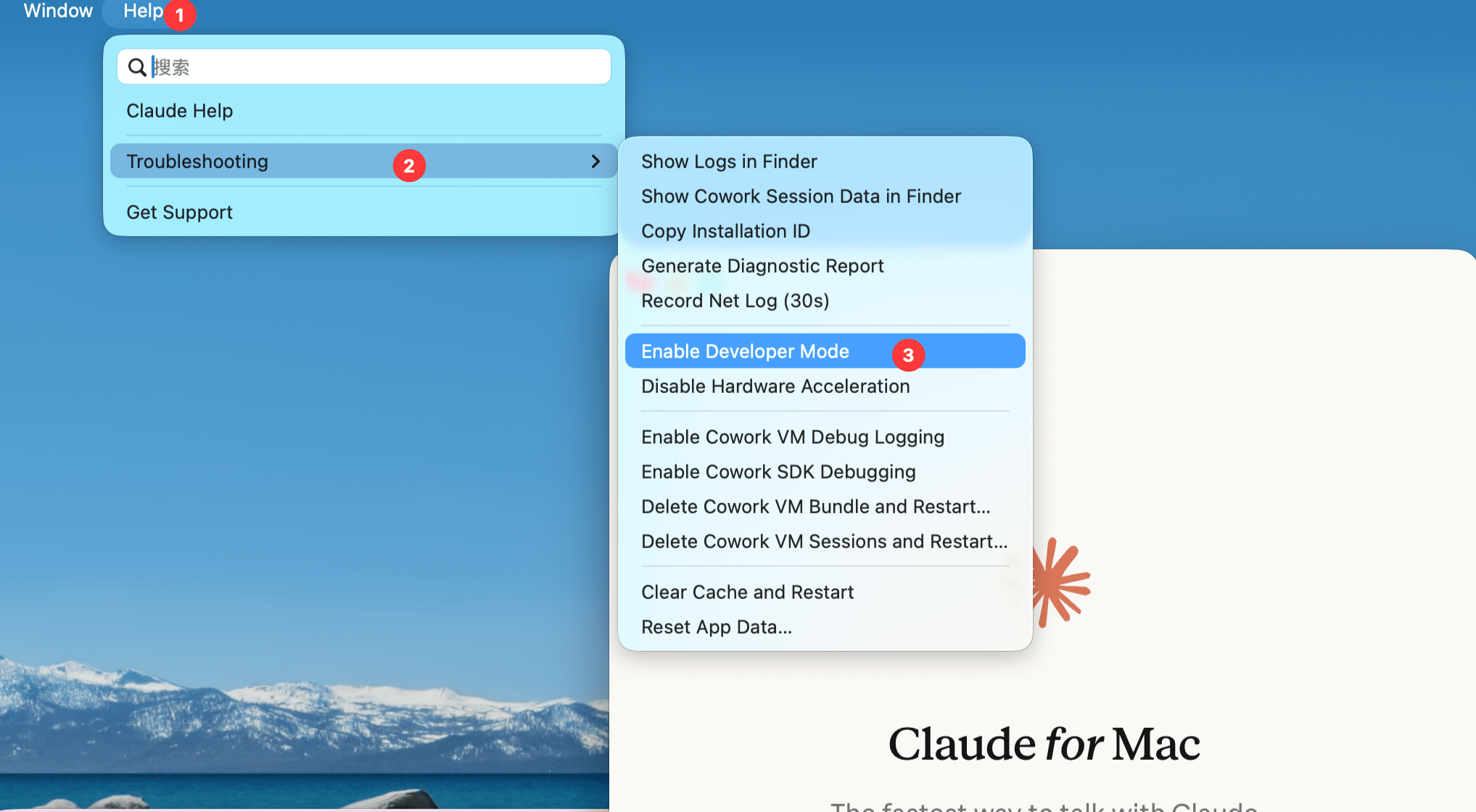
    1. 点击菜单 **Help → Troubleshooting → Enable Developer Mode**  → **Enable**
           <Frame>
             <img src="https://mintcdn.com/cdhyzxwl/RFLZqC0uZxKV3SQo/images/macshot-clipboard-DE9AFADC-60BF-4D8D-AD31-CE0F50408E0C.png?fit=max&auto=format&n=RFLZqC0uZxKV3SQo&q=85&s=dede5012d05b9e0956e15bab46849bdf" alt="Macshot Clipboard DE9AFADC 60BF 4D8D AD31 CE0F50408E0C" width="2035" height="1120" data-path="images/macshot-clipboard-DE9AFADC-60BF-4D8D-AD31-CE0F50408E0C.png" />
           </Frame>
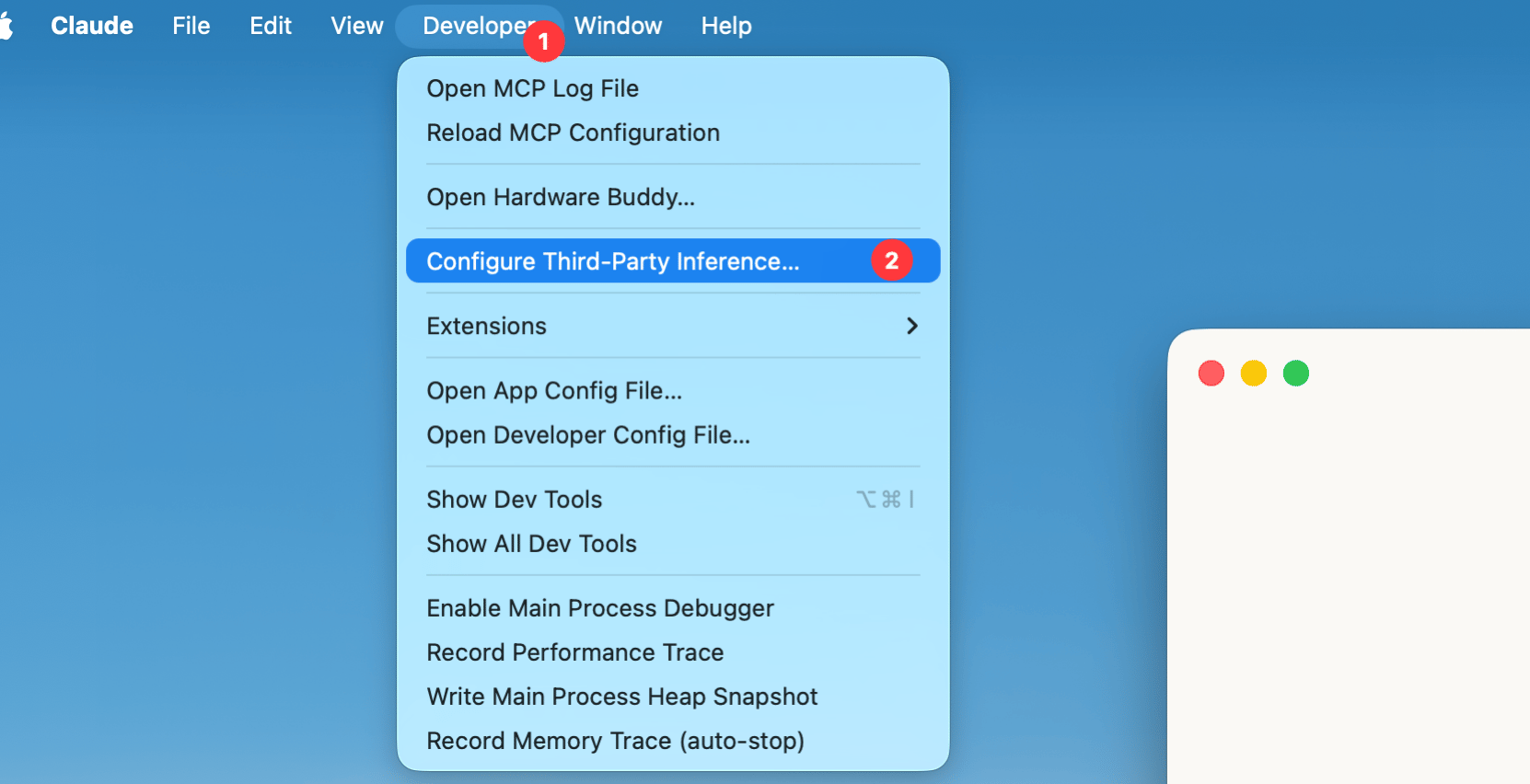
    2. 重启桌面端，依次点击菜单 **Developer → Configure Third-Party Inference…**
           <Frame>
             <img src="https://mintcdn.com/cdhyzxwl/RFLZqC0uZxKV3SQo/images/macshot-clipboard-AF91638A-327A-4B8F-91E4-F2123725640B.png?fit=max&auto=format&n=RFLZqC0uZxKV3SQo&q=85&s=59bd68dbff710e93e1aa02e722d65668" alt="Macshot Clipboard AF91638A 327A 4B8F 91E4 F2123725640B" width="1662" height="852" data-path="images/macshot-clipboard-AF91638A-327A-4B8F-91E4-F2123725640B.png" />
           </Frame>
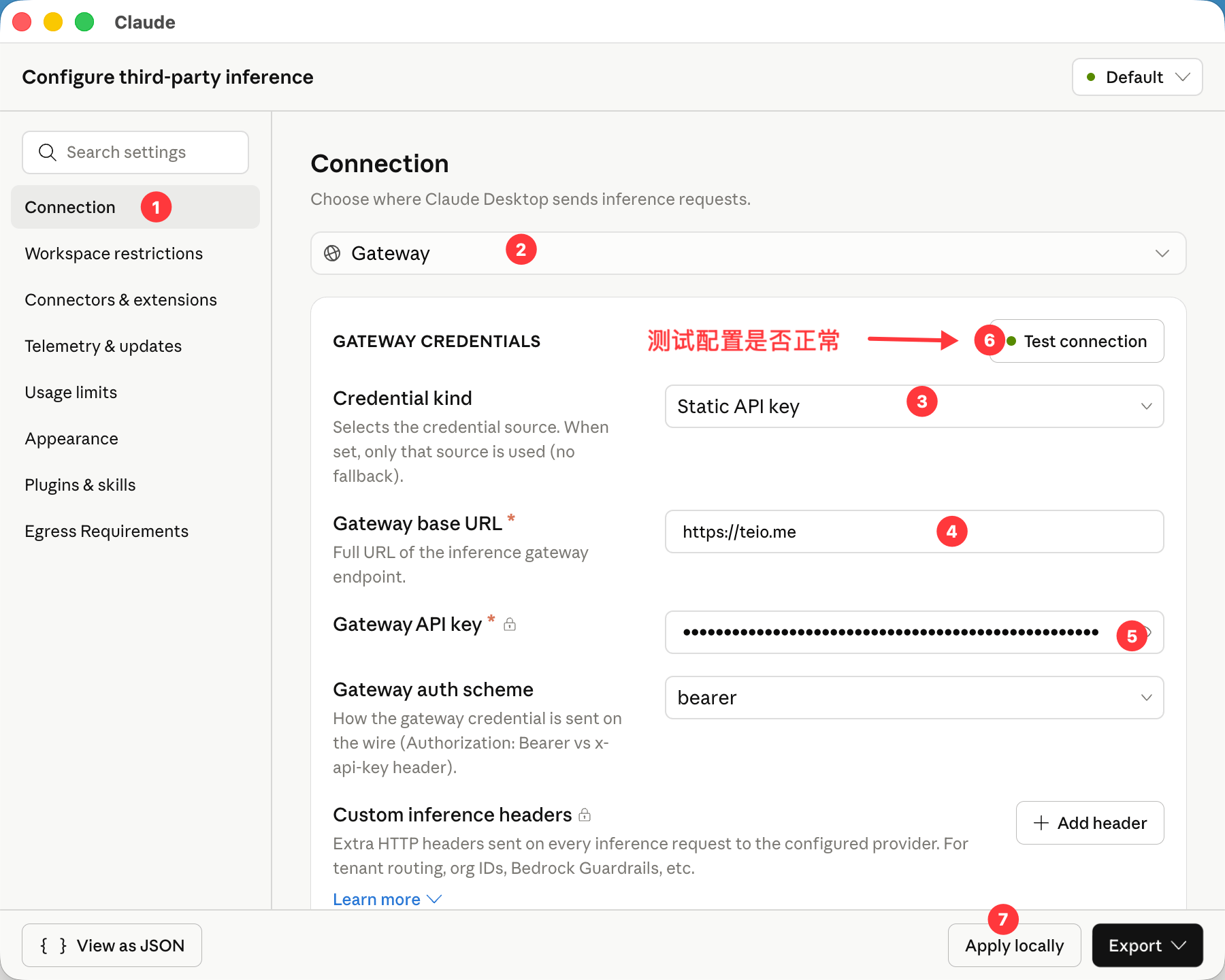
    3. Connection 选择 **Gateway**
    4. 选择 Credential kind： `Static API Key`
    5. 填写 Gateway base URL：`https://teio.me`
    6. 填写 Gateway API key：`你的密钥`
    7. 点击 Test connection：测试配置是否正常
    8. 点击 Apply Locally 应用
           <Frame>
             <img src="https://mintcdn.com/cdhyzxwl/RFLZqC0uZxKV3SQo/images/macshot-clipboard-651C1406-B0AA-4CEE-B9CB-1F3D49F1D021.png?fit=max&auto=format&n=RFLZqC0uZxKV3SQo&q=85&s=978e690f850b8ffde99c2eb1b5b2d07b" alt="Macshot Clipboard 651C1406 B0AA 4CEE B9CB 1F3D49F1D021" width="1800" height="1440" data-path="images/macshot-clipboard-651C1406-B0AA-4CEE-B9CB-1F3D49F1D021.png" />
           </Frame>
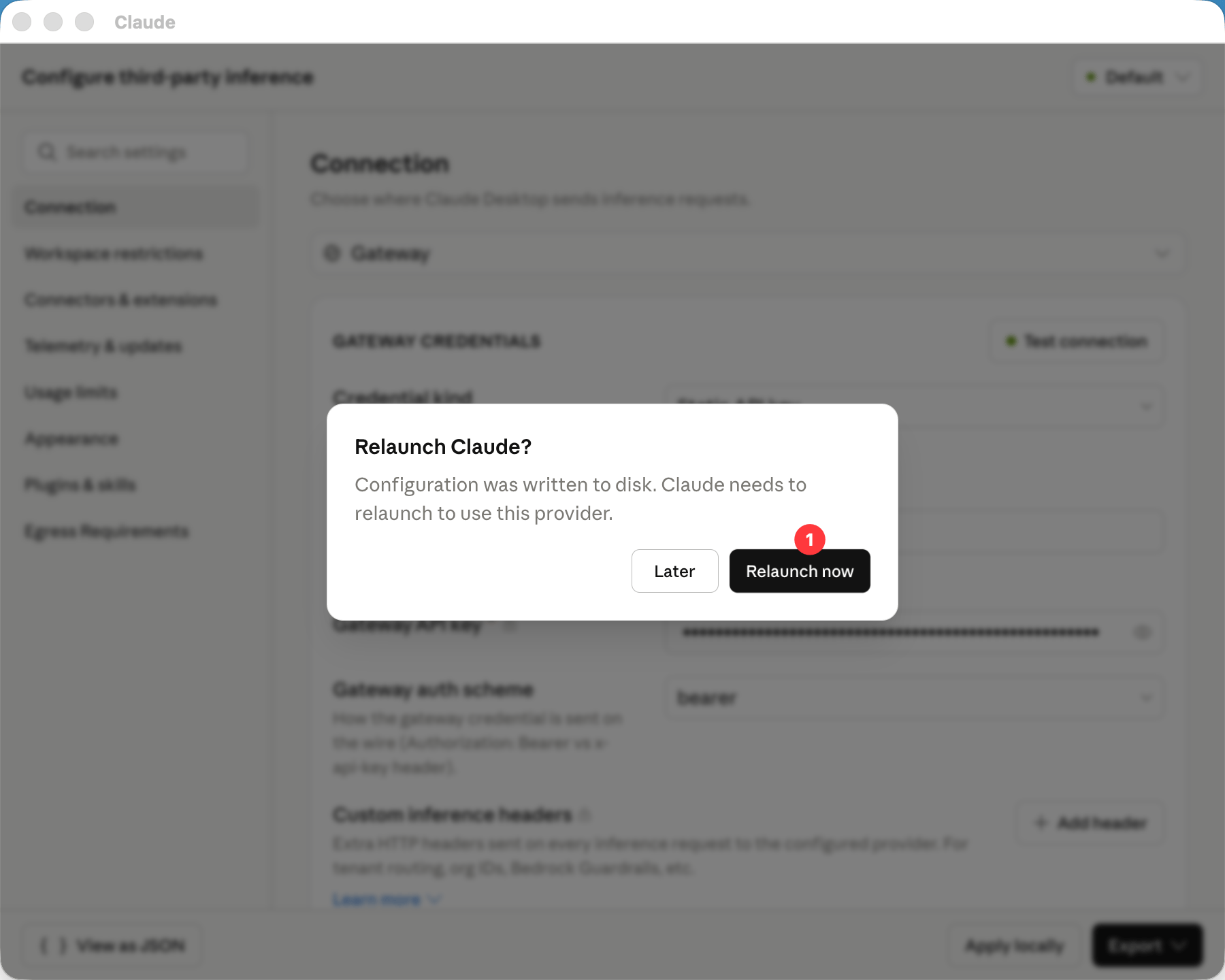
    9. 重启Claude
           <Frame>
             <img src="https://mintcdn.com/cdhyzxwl/RFLZqC0uZxKV3SQo/images/macshot-clipboard-CFCF4A24-0706-4B77-ABE0-C92DE0C5FC92.png?fit=max&auto=format&n=RFLZqC0uZxKV3SQo&q=85&s=2c0aa3a87b2618e83b90c1b859196bb2" alt="Macshot Clipboard CFCF4A24 0706 4B77 ABE0 C92DE0C5FC92" width="1800" height="1440" data-path="images/macshot-clipboard-CFCF4A24-0706-4B77-ABE0-C92DE0C5FC92.png" />
           </Frame>
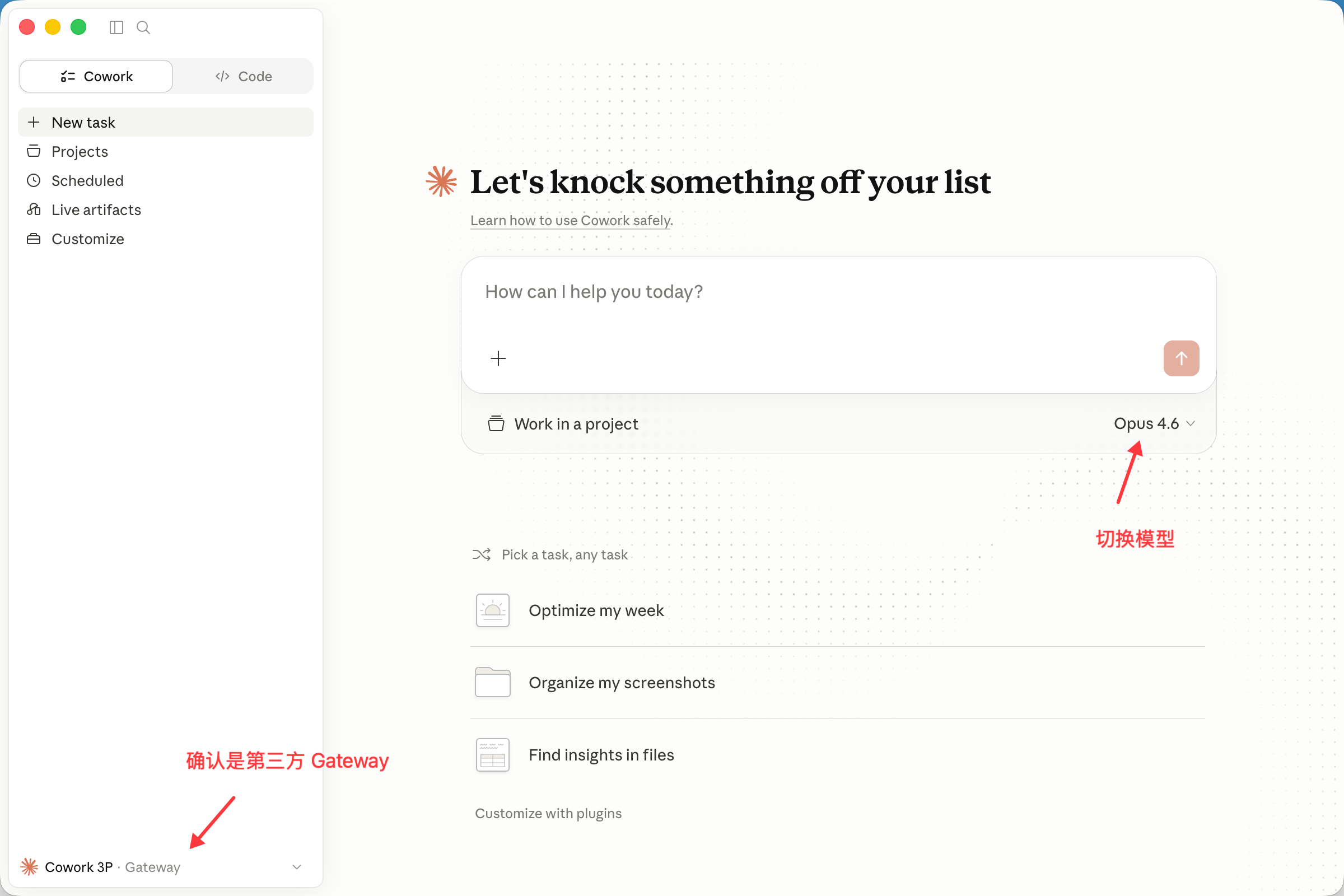
    10. 直接进入使用界面
            <Frame>
              <img src="https://mintcdn.com/cdhyzxwl/RFLZqC0uZxKV3SQo/images/macshot-clipboard-78242348-8C37-4DFD-B89B-98F9575715D4.png?fit=max&auto=format&n=RFLZqC0uZxKV3SQo&q=85&s=a229465945da0d733e579d340f02e9a1" alt="Macshot Clipboard 78242348 8C37 4DFD B89B 98F9575715D4" width="2400" height="1600" data-path="images/macshot-clipboard-78242348-8C37-4DFD-B89B-98F9575715D4.png" />
            </Frame>
  </Tab>

  <Tab title="Windows">
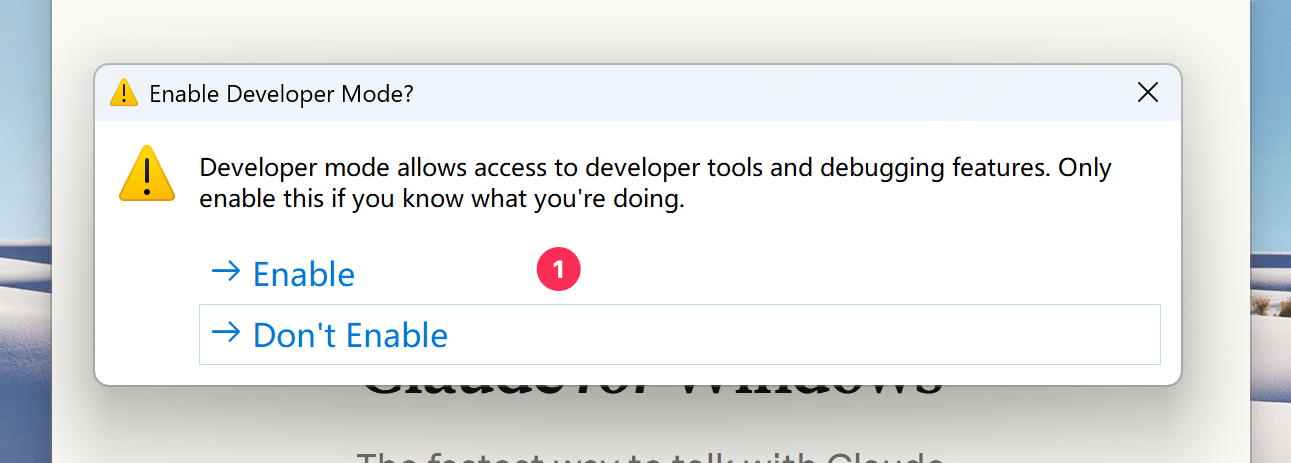
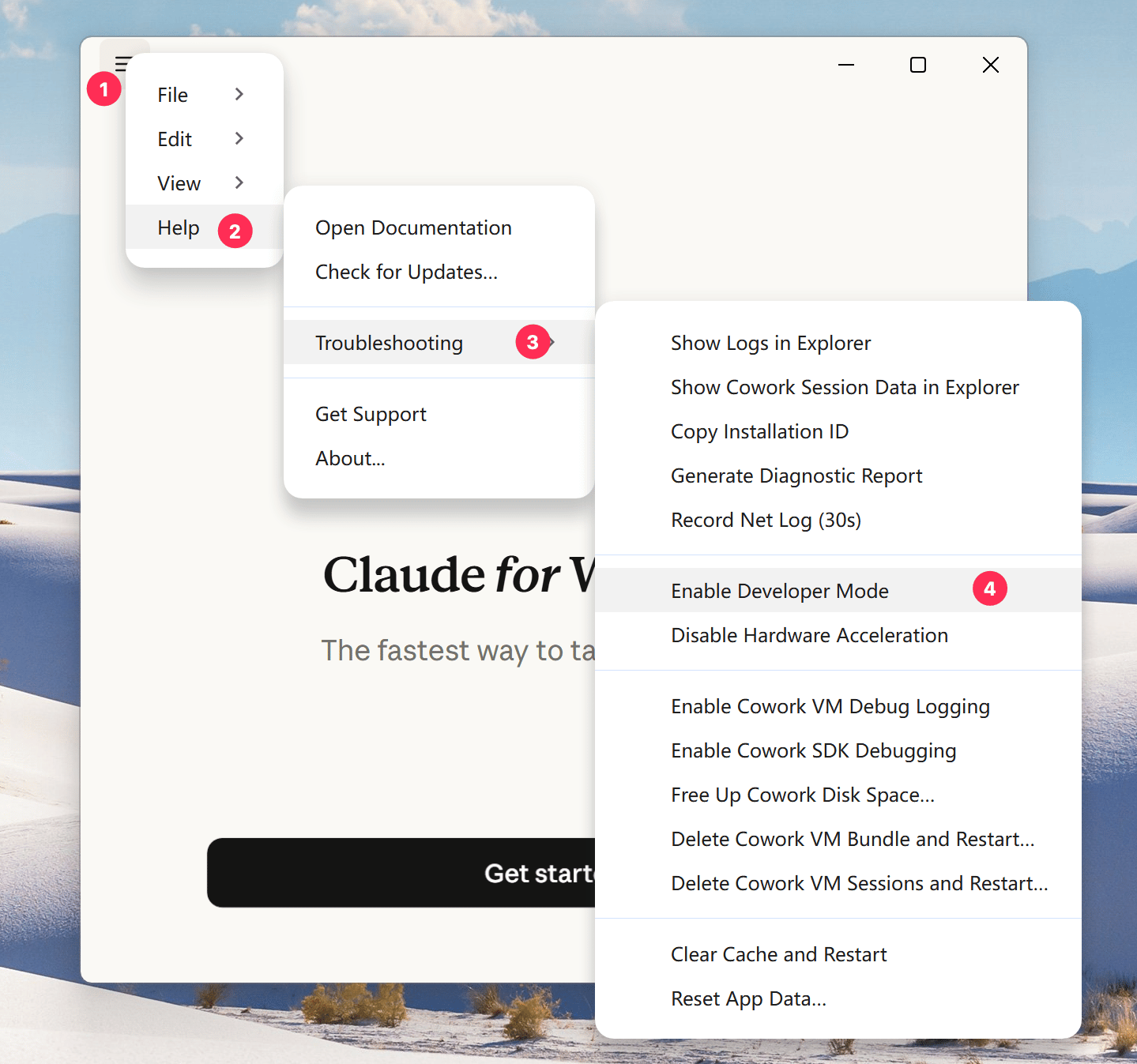
    1. 点击菜单 **Help → Troubleshooting → Enable Developer Mode** → **Enable**
           <Frame>
             <img src="https://mintcdn.com/cdhyzxwl/R6I6xFs3jkRYDEmB/images/Screenshot-2026-06-29-at-18-13-13.png?fit=max&auto=format&n=R6I6xFs3jkRYDEmB&q=85&s=f0744a0642170dca43860e11590831b7" alt="Screenshot 2026 06 29 At 18 13 13" width="1439" height="1347" data-path="images/Screenshot-2026-06-29-at-18-13-13.png" />
           </Frame>
    2. 同意启动
           <Frame>
             <img src="https://mintcdn.com/cdhyzxwl/R6I6xFs3jkRYDEmB/images/Screenshot-2026-06-29-at-18-15-54.png?fit=max&auto=format&n=R6I6xFs3jkRYDEmB&q=85&s=513daa5ce249667a1a337d936ee6b0ae" alt="Screenshot 2026 06 29 At 18 15 54" width="1291" height="463" data-path="images/Screenshot-2026-06-29-at-18-15-54.png" />
           </Frame>
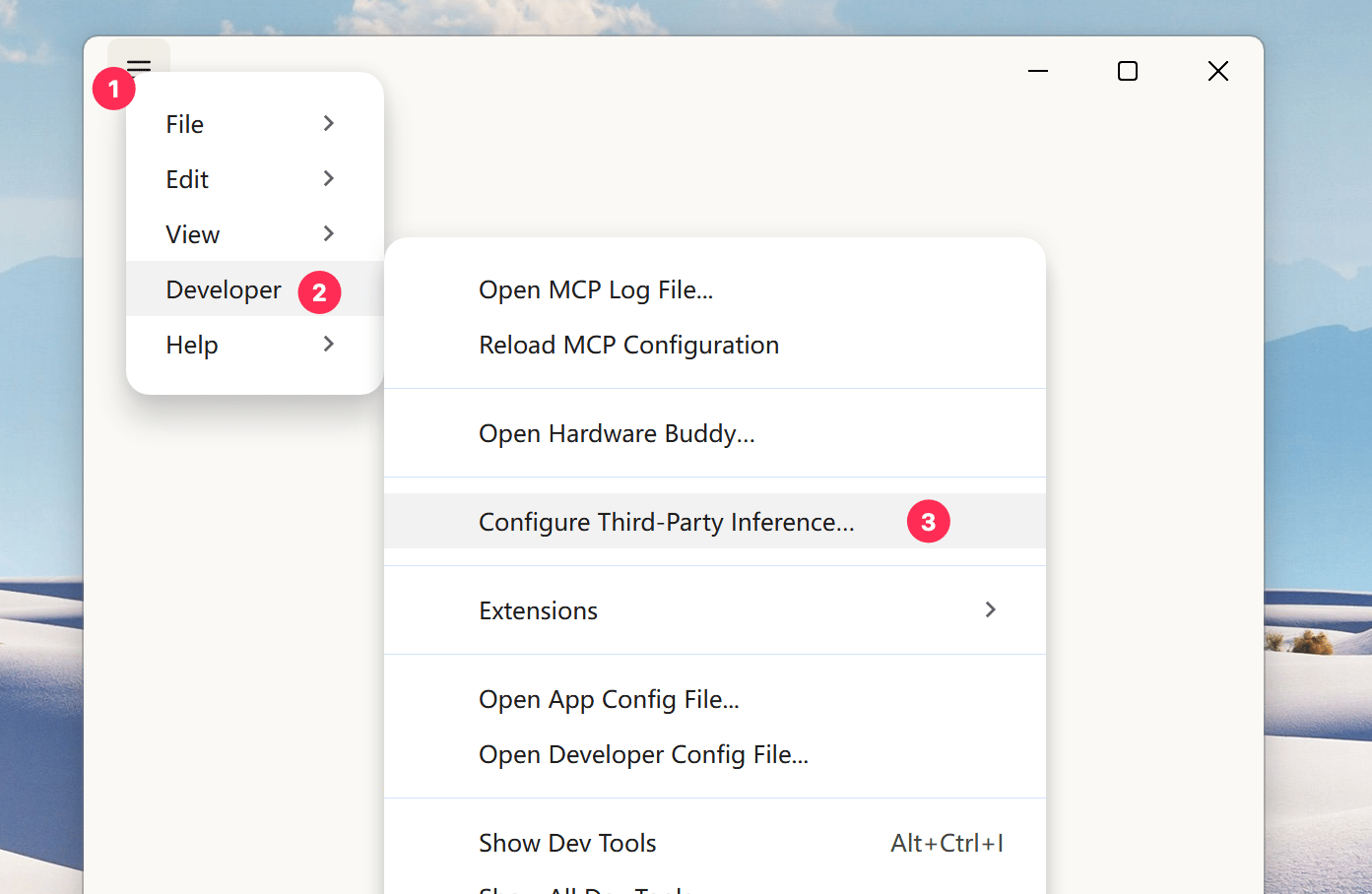
    3. 重启桌面端，依次点击菜单 **Developer → Configure Third-Party Inference…**
           <Frame>
             <img src="https://mintcdn.com/cdhyzxwl/R6I6xFs3jkRYDEmB/images/Screenshot-2026-06-29-at-18-16-40.png?fit=max&auto=format&n=R6I6xFs3jkRYDEmB&q=85&s=379406758fdfffe7151b39e4872eb9f0" alt="Screenshot 2026 06 29 At 18 16 40" width="1393" height="908" data-path="images/Screenshot-2026-06-29-at-18-16-40.png" />
           </Frame>
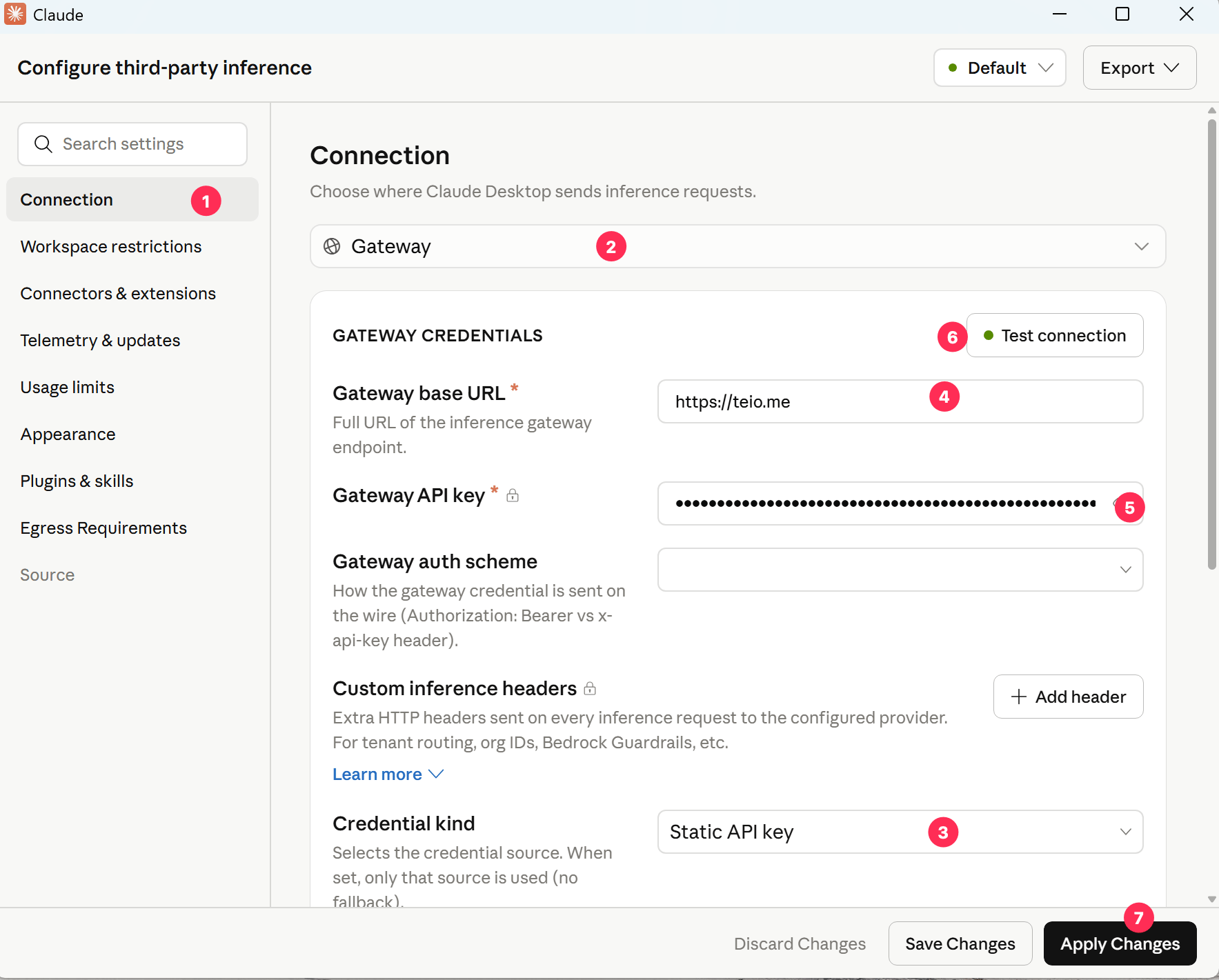
    4. Connection 选择 **Gateway**
    5. 选择 Credential kind： `Static API Key`
    6. 填写 Gateway base URL：`https://teio.me`
    7. 填写 Gateway API key：`你的密钥`
    8. 点击 Test connection：测试配置是否正常
    9. 点击 Apply Changes 应用
           <Frame>
             <img src="https://mintcdn.com/cdhyzxwl/R6I6xFs3jkRYDEmB/images/Screenshot-2026-06-29-at-18-19-57.png?fit=max&auto=format&n=R6I6xFs3jkRYDEmB&q=85&s=9de7a81887b50966c89a8aa80a993d55" alt="Screenshot 2026 06 29 At 18 19 57" width="1767" height="1421" data-path="images/Screenshot-2026-06-29-at-18-19-57.png" />
           </Frame>
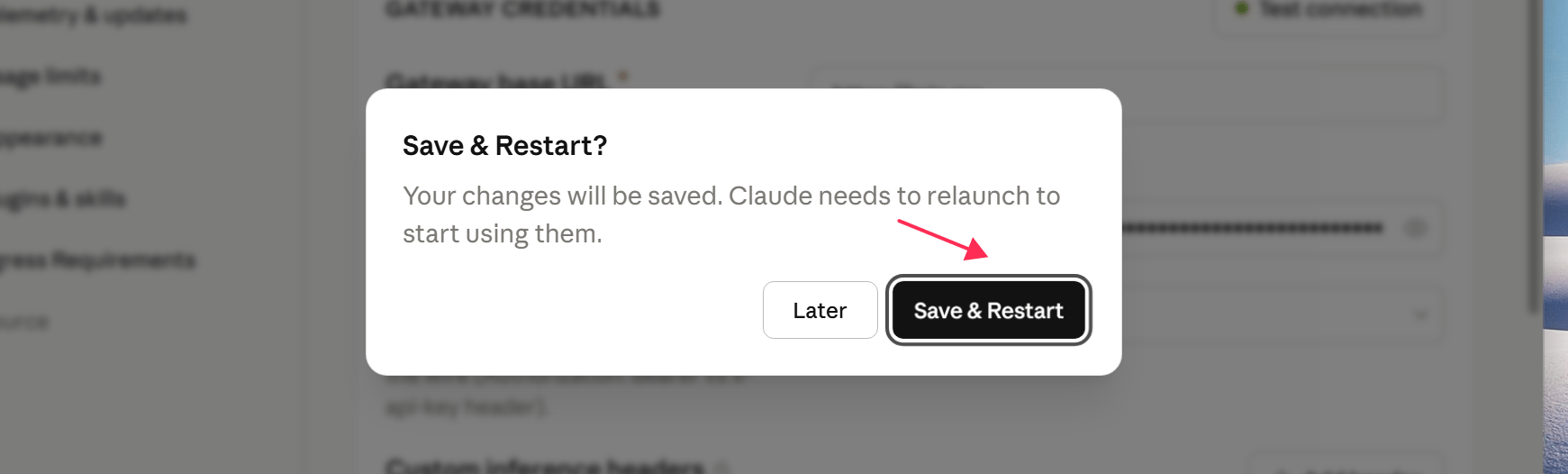
    10. 重启 Claude
            <Frame>
              <img src="https://mintcdn.com/cdhyzxwl/R6I6xFs3jkRYDEmB/images/Screenshot-2026-06-29-at-18-21-24.png?fit=max&auto=format&n=R6I6xFs3jkRYDEmB&q=85&s=8ca3b5bdd0bc77db484fb4c5258eb904" alt="Screenshot 2026 06 29 At 18 21 24" width="1741" height="526" data-path="images/Screenshot-2026-06-29-at-18-21-24.png" />
            </Frame>
  </Tab>
</Tabs>

## 使用

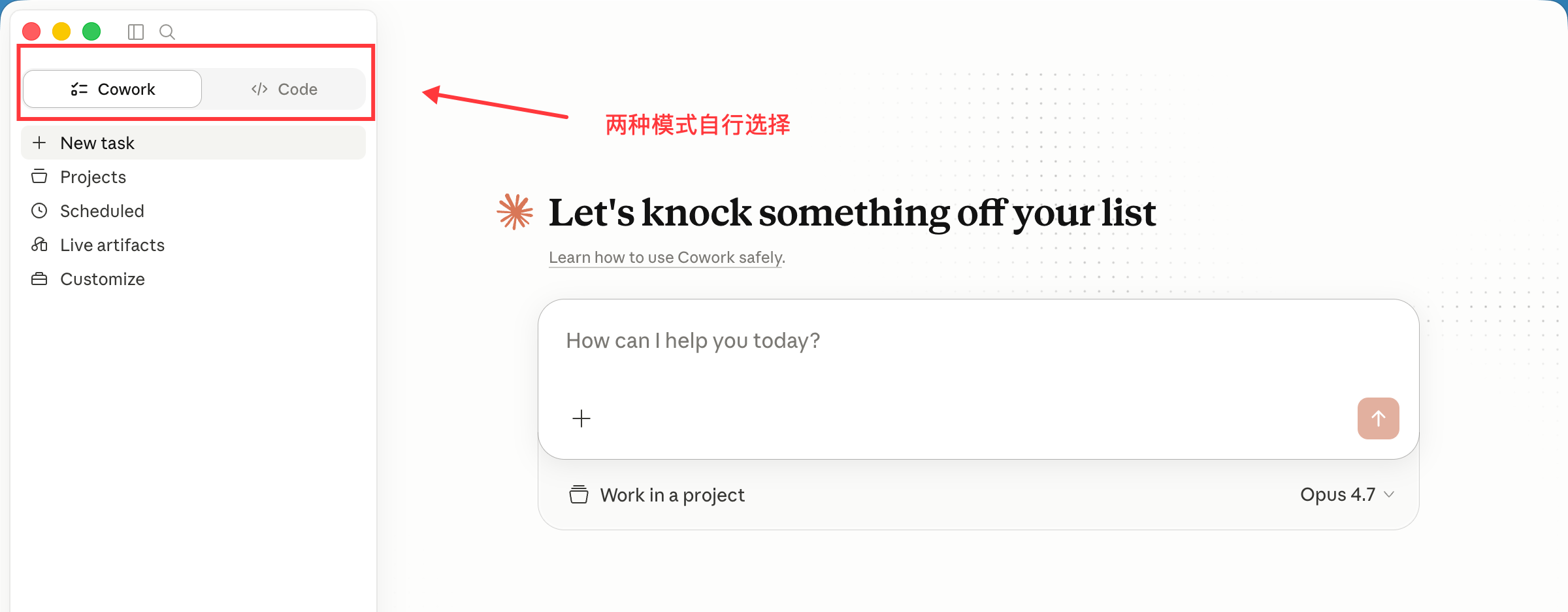
启动后左侧边栏有两个模式：

* **Cowork** — 协作模式，和 Claude 讨论问题、分析代码、提出建议，不会主动修改文件
* **Code** — 编码模式，Claude 会直接读取和编辑项目文件、执行终端命令

在对话框中输入编程需求即可开始使用
<Frame>
  <img src="https://mintcdn.com/cdhyzxwl/RFLZqC0uZxKV3SQo/images/macshot-clipboard-88482A48-5374-4CDC-9D1E-A292FE94E055.png?fit=max&auto=format&n=RFLZqC0uZxKV3SQo&q=85&s=680e9ab4870dfa83657dba1aab5eef64" alt="Macshot Clipboard 88482A48 5374 4CDC 9D1E A292FE94E055" width="2400" height="936" data-path="images/macshot-clipboard-88482A48-5374-4CDC-9D1E-A292FE94E055.png" />
</Frame>

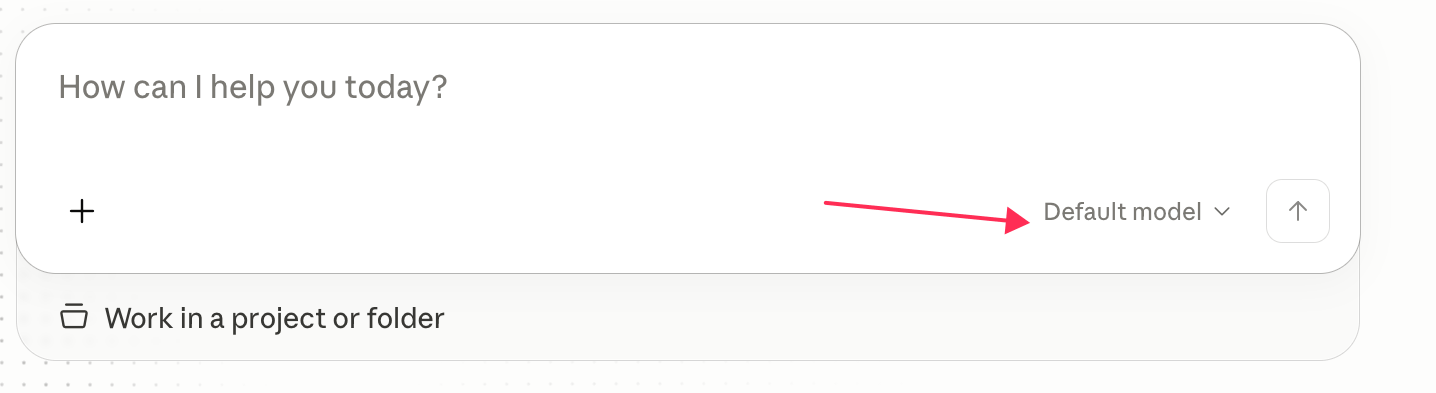
## 模型不存在

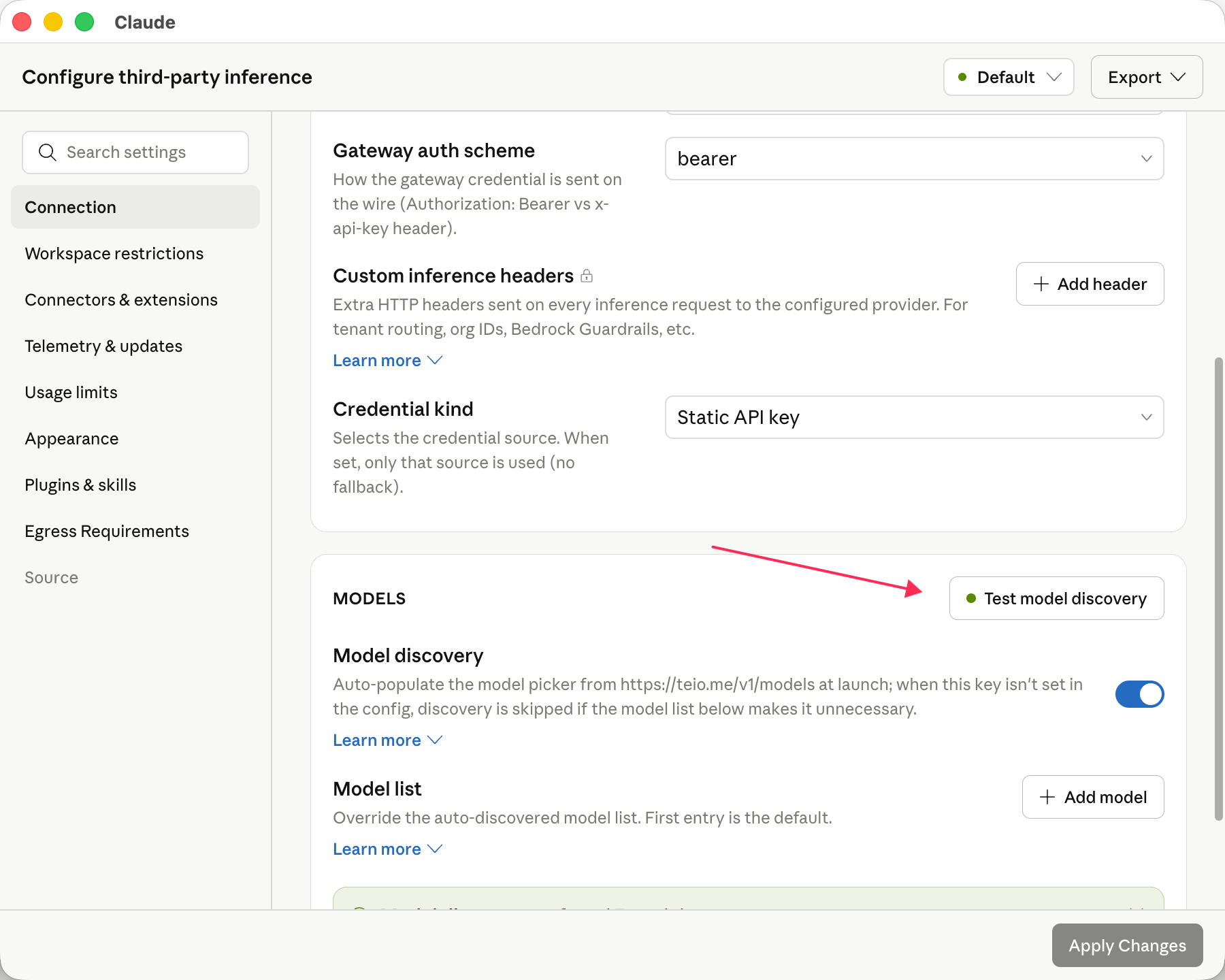
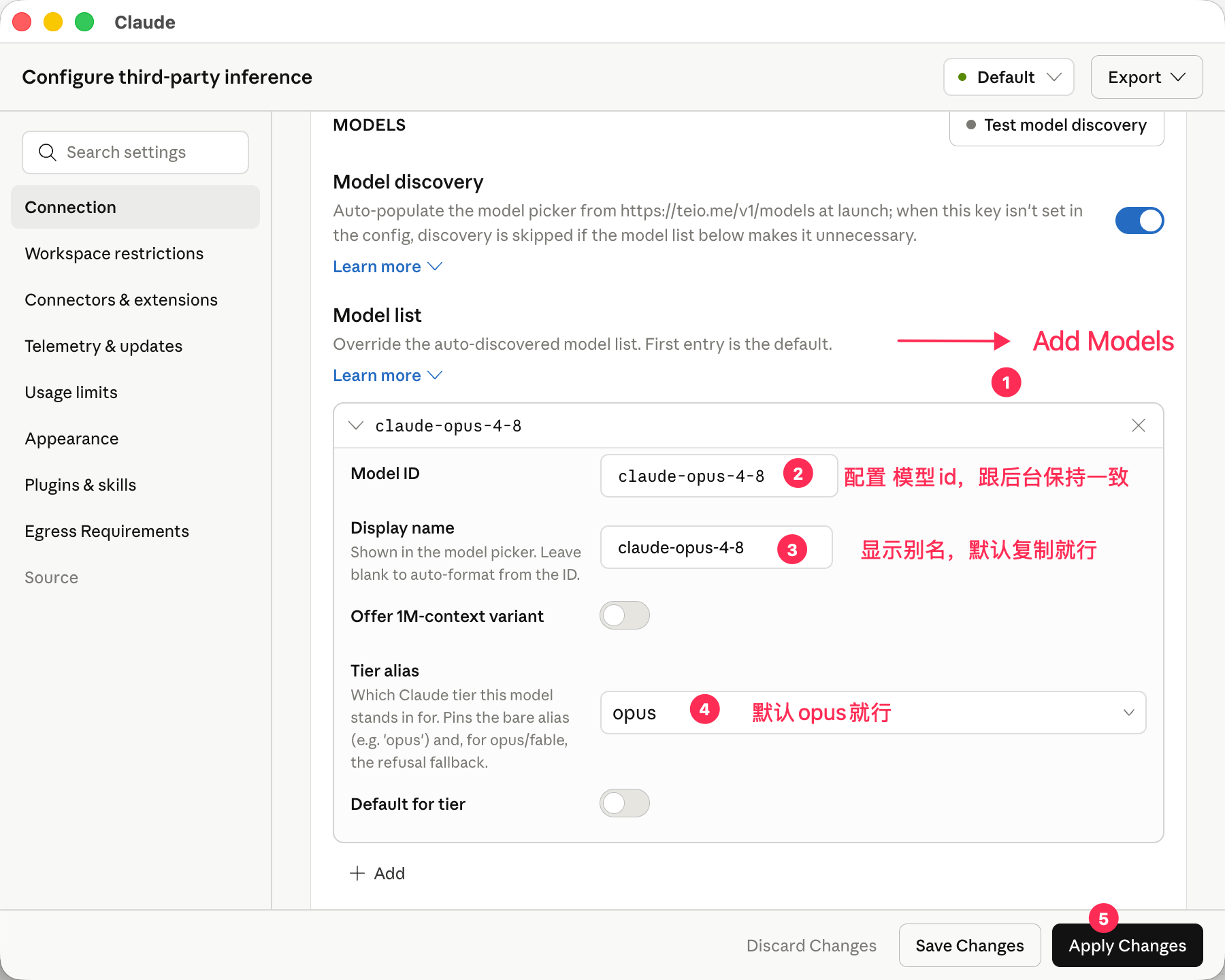
个别版本配置会出现不存在模型，选择不了模型。有两种方式解决。参考配置第二步骤唤醒界面

<Frame>
  <img src="https://mintcdn.com/cdhyzxwl/C2UDyHxydD3-_cXL/images/Screenshot-2026-07-03-at-14-49-58.png?fit=max&auto=format&n=C2UDyHxydD3-_cXL&q=85&s=20da91f54663031a32a5d373e1c4e8f7" alt="Screenshot 2026 07 03 At 14 49 58" width="1436" height="393" data-path="images/Screenshot-2026-07-03-at-14-49-58.png" />
</Frame>

1. 通过点击测试，自动添加模型
   <Frame>
     <img src="https://mintcdn.com/cdhyzxwl/C2UDyHxydD3-_cXL/images/Screenshot-2026-07-03-at-14-52-27.png?fit=max&auto=format&n=C2UDyHxydD3-_cXL&q=85&s=a5d65f02fb9f67018c1885324b71112d" alt="Screenshot 2026 07 03 At 14 52 27" width="1800" height="1440" data-path="images/Screenshot-2026-07-03-at-14-52-27.png" />
   </Frame>
2. 手动添加模型
   <Frame>
     <img src="https://mintcdn.com/cdhyzxwl/C2UDyHxydD3-_cXL/images/Screenshot-2026-07-03-at-15-00-37.png?fit=max&auto=format&n=C2UDyHxydD3-_cXL&q=85&s=644bdb72b8e3c8a21c3cda8fc2854c6c" alt="Screenshot 2026 07 03 At 15 00 37" width="1800" height="1440" data-path="images/Screenshot-2026-07-03-at-15-00-37.png" />
   </Frame>

## 常见问题

<AccordionGroup>
  <Accordion title="桌面端提示需要登录怎么办？">
    确保已开启 Developer Mode 并配置了 Third-Party Inference。如果仍提示登录，检查是否勾选了 Skip login-mode chooser 并重启应用。
  </Accordion>

  <Accordion title="下载页面打不开或下载失败">
    claude.com 在部分网络环境下可能无法访问，建议使用代理后再尝试下载。
  </Accordion>

  <Accordion title="桌面客户端和 VS Code 扩展有什么区别？">
    功能基本一致，桌面客户端是独立应用，不依赖 VS Code。适合希望有独立窗口进行 AI 编程的场景。
  </Accordion>
</AccordionGroup>

遇到其他问题？请参考 [常见问题](/faq)。