> ## Documentation Index
> Fetch the complete documentation index at: https://docs.teio.me/llms.txt
> Use this file to discover all available pages before exploring further.

# DeepSeek Harness

> 安装 DeepSeek Harness，并通过 Teio 配置自定义模型提供方

> DeepSeek Harness（`dsh`）是 DeepSeek 开源的 Agent Harness，核心设计是 **Everything is a Plugin**。它支持 Web UI、插件化模型提供方，以及自定义 OpenAI 兼容端点。

## 前置条件

* 已安装 Node.js
* 已 [创建 API 密钥](/create-token)

## 安装与启动

<Tabs>
  <Tab title="npm 快速启动（推荐）">
    在终端执行：

    ```bash theme={null}
    npx @deepseek-ai/dsh web
    ```

    默认会启动 Web UI，地址通常是：

    ```text theme={null}
    http://127.0.0.1:3080
    ```
  </Tab>

  <Tab title="源码启动">
    如果需要使用 DeepSeek Harness 仓库的开发版，可以从源码启动：

    ```bash theme={null}
    git clone https://github.com/deepseek-ai/deepseek-harness.git
    cd deepseek-harness
    pnpm install
    pnpm run build
    pnpm dsh web
    ```
  </Tab>
</Tabs>

<Warning>
  DeepSeek Harness 目前仍处于 Developer Preview，后续版本可能会出现不兼容变更。如果配置项名称发生变化，请优先以 Harness 当前版本的设置页和官方文档为准。
</Warning>

## 通过 Web UI 配置 Teio

<Steps>
  <Step title="访问 Web UI">
    启动后访问 `http://127.0.0.1:3080`。
  </Step>

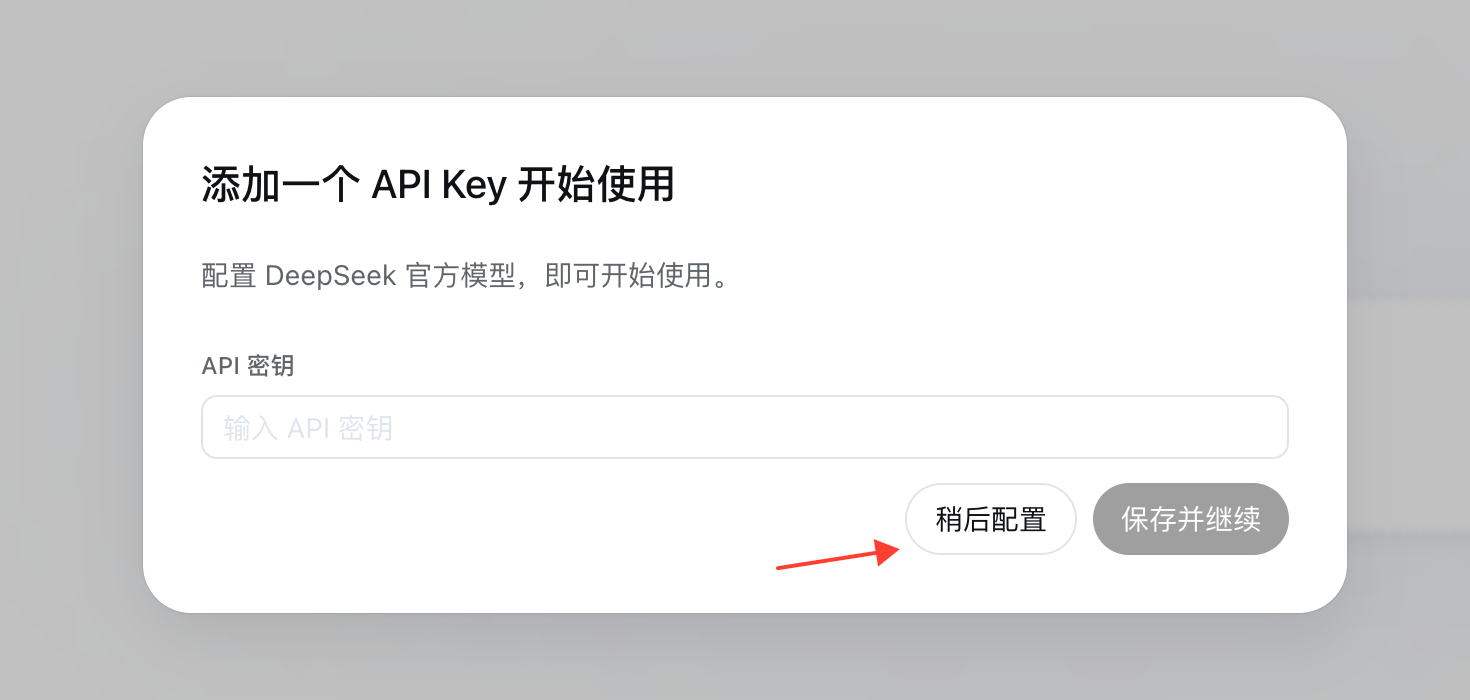
  <Step title="跳过官方模型配置">
    首次进入时会提示配置 DeepSeek 官方模型。这里先选择 **稍后设置**，后面再添加 Teio 提供方。

    <Frame>
      <img src="https://mintcdn.com/cdhyzxwl/vwyEsKokqA4vmmIJ/images/Screenshot-2026-08-17-at-14-17-00-1.png?fit=max&auto=format&n=vwyEsKokqA4vmmIJ&q=85&s=48923f377d7077af1b8490cf281317f3" alt="Screenshot 2026 08 17 At 14 17 00" width="1470" height="700" data-path="images/Screenshot-2026-08-17-at-14-17-00-1.png" />
    </Frame>
  </Step>

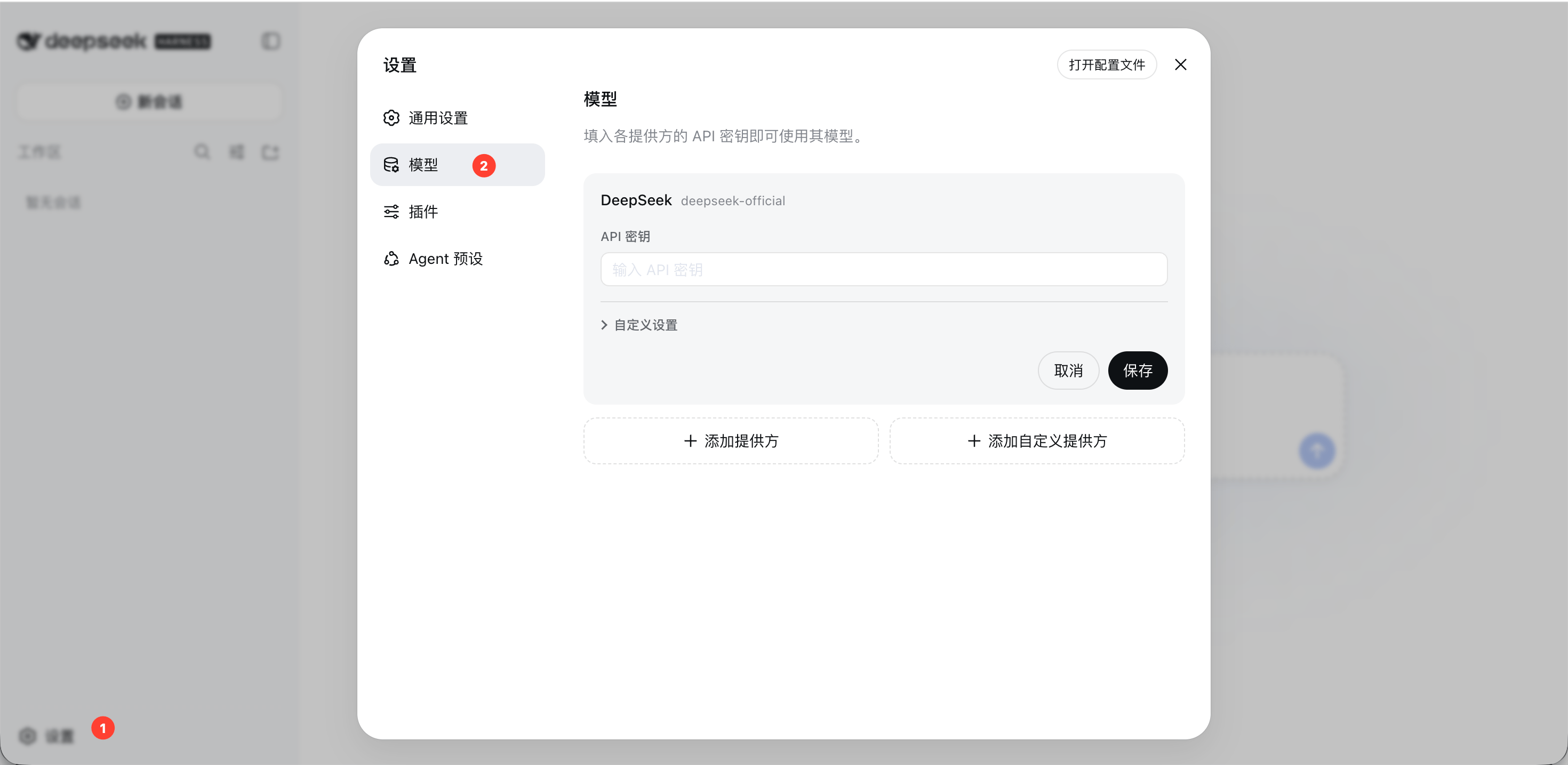
  <Step title="打开模型设置">
    进入 **设置 → 模型**。

    <Frame>
      <img src="https://mintcdn.com/cdhyzxwl/vwyEsKokqA4vmmIJ/images/Screenshot-2026-08-17-at-14-18-22.png?fit=max&auto=format&n=vwyEsKokqA4vmmIJ&q=85&s=2d9c4a60b2e7dd9ddba2d08d3655265b" alt="Screenshot 2026 08 17 At 14 18 22" width="2940" height="1435" data-path="images/Screenshot-2026-08-17-at-14-18-22.png" />
    </Frame>
  </Step>

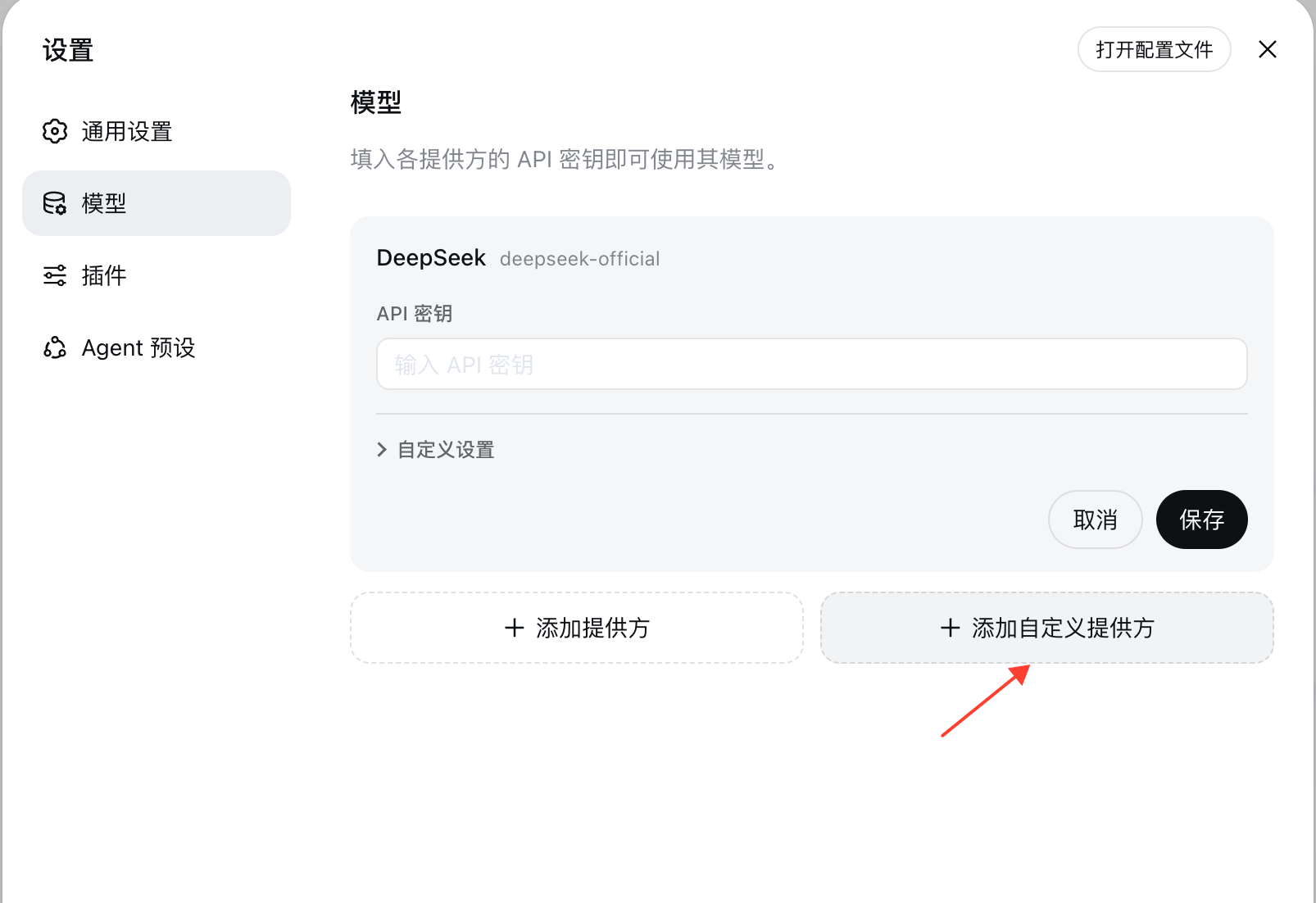
  <Step title="添加自定义提供方">
    选择 **添加自定义提供方**，用于配置 Teio 这类 OpenAI 兼容网关。

    <Frame>
      <img src="https://mintcdn.com/cdhyzxwl/vwyEsKokqA4vmmIJ/images/Screenshot-2026-08-17-at-14-20-13.png?fit=max&auto=format&n=vwyEsKokqA4vmmIJ&q=85&s=93d2e96f897bd5f8fc642d310aedb6be" alt="Screenshot 2026 08 17 At 14 20 13" width="1606" height="1102" data-path="images/Screenshot-2026-08-17-at-14-20-13.png" />
    </Frame>
  </Step>

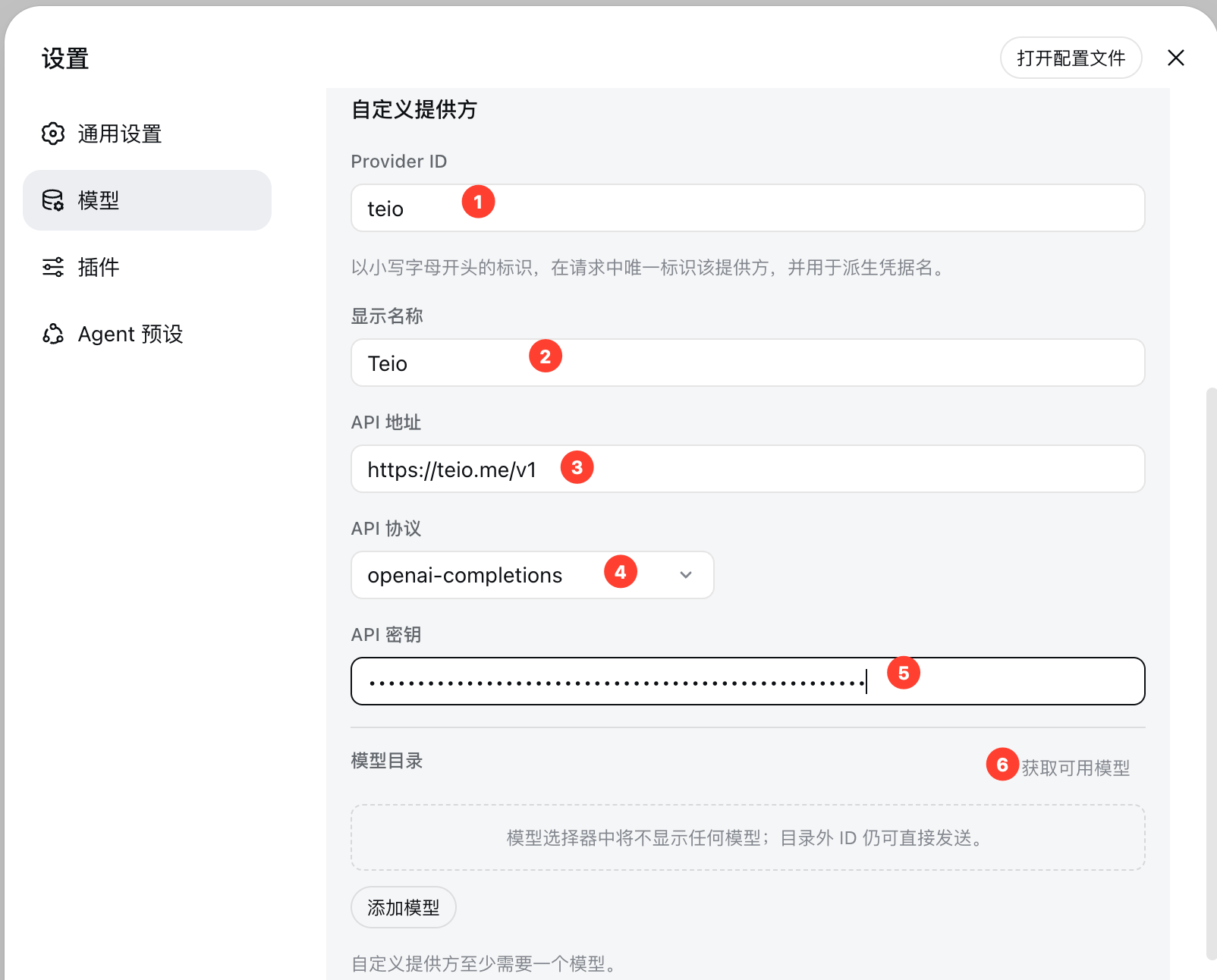
  <Step title="填写 Teio 连接信息">
    Provider ID：`teio`

    显示名称：`Teio`

    API 地址：`https://teio.me/v1`

    API 协议：`openai-completions`

    API 密钥：填写你在 Teio 创建的 API 密钥

    <Frame>
      <img src="https://mintcdn.com/cdhyzxwl/vwyEsKokqA4vmmIJ/images/Screenshot-2026-08-17-at-14-22-05.png?fit=max&auto=format&n=vwyEsKokqA4vmmIJ&q=85&s=a4b0a92e4594d580677226f63c5706dc" alt="Screenshot 2026 08 17 At 14 22 05" width="1604" height="1292" data-path="images/Screenshot-2026-08-17-at-14-22-05.png" />
    </Frame>
  </Step>

  <Step title="设置模型">
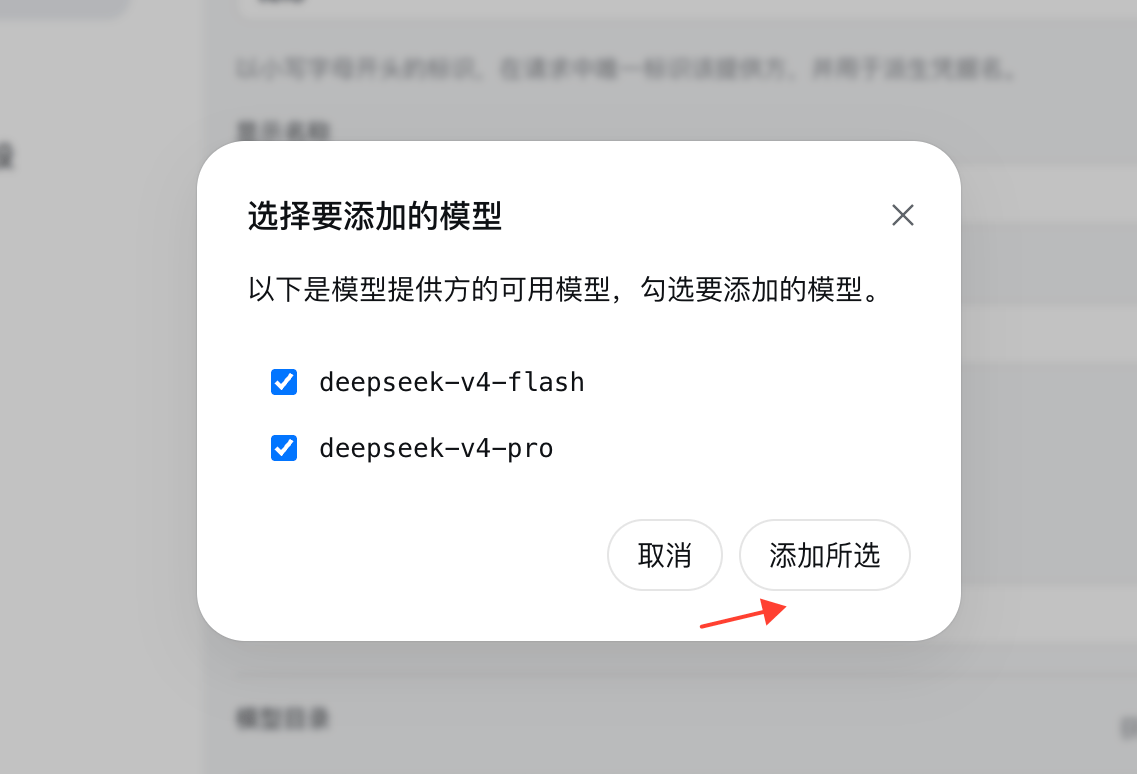
    点击 **获取可用模型**，在弹窗中选择需要使用的模型。

    <Frame>
      <img src="https://mintcdn.com/cdhyzxwl/vwyEsKokqA4vmmIJ/images/Screenshot-2026-08-17-at-14-25-04.png?fit=max&auto=format&n=vwyEsKokqA4vmmIJ&q=85&s=18129558663a6aefed26b71caabab25b" alt="Screenshot 2026 08 17 At 14 25 04" width="1137" height="774" data-path="images/Screenshot-2026-08-17-at-14-25-04.png" />
    </Frame>
  </Step>

  <Step title="保存提供方">
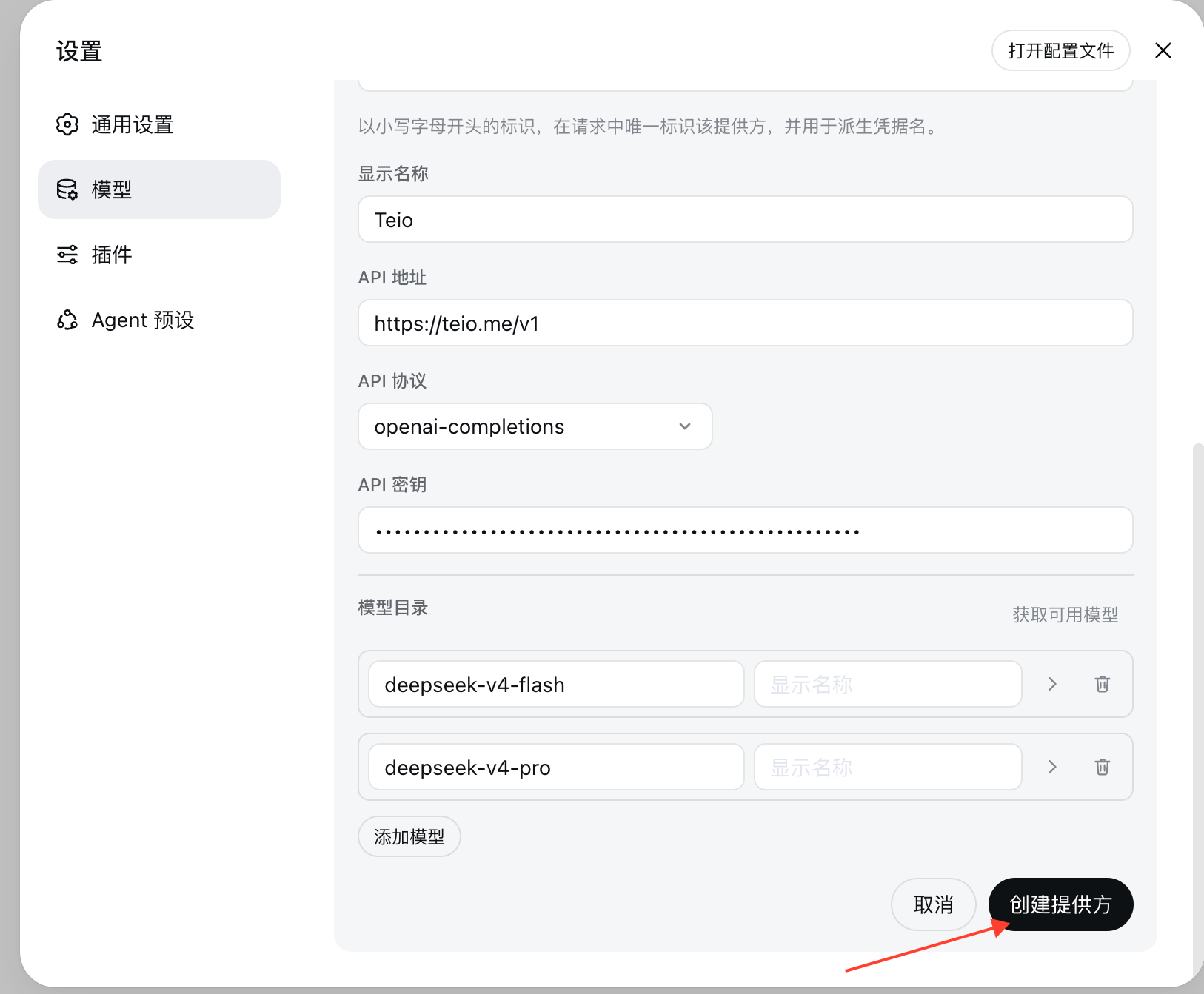
    保存后，Teio 会出现在模型选择器中。

    <Frame>
      <img src="https://mintcdn.com/cdhyzxwl/vwyEsKokqA4vmmIJ/images/Screenshot-2026-08-17-at-14-25-39.png?fit=max&auto=format&n=vwyEsKokqA4vmmIJ&q=85&s=a67714ee97ae504e7453c33c1dd8f7d6" alt="Screenshot 2026 08 17 At 14 25 39" width="1626" height="1343" data-path="images/Screenshot-2026-08-17-at-14-25-39.png" />
    </Frame>
  </Step>

  <Step title="选择模型并开始使用">
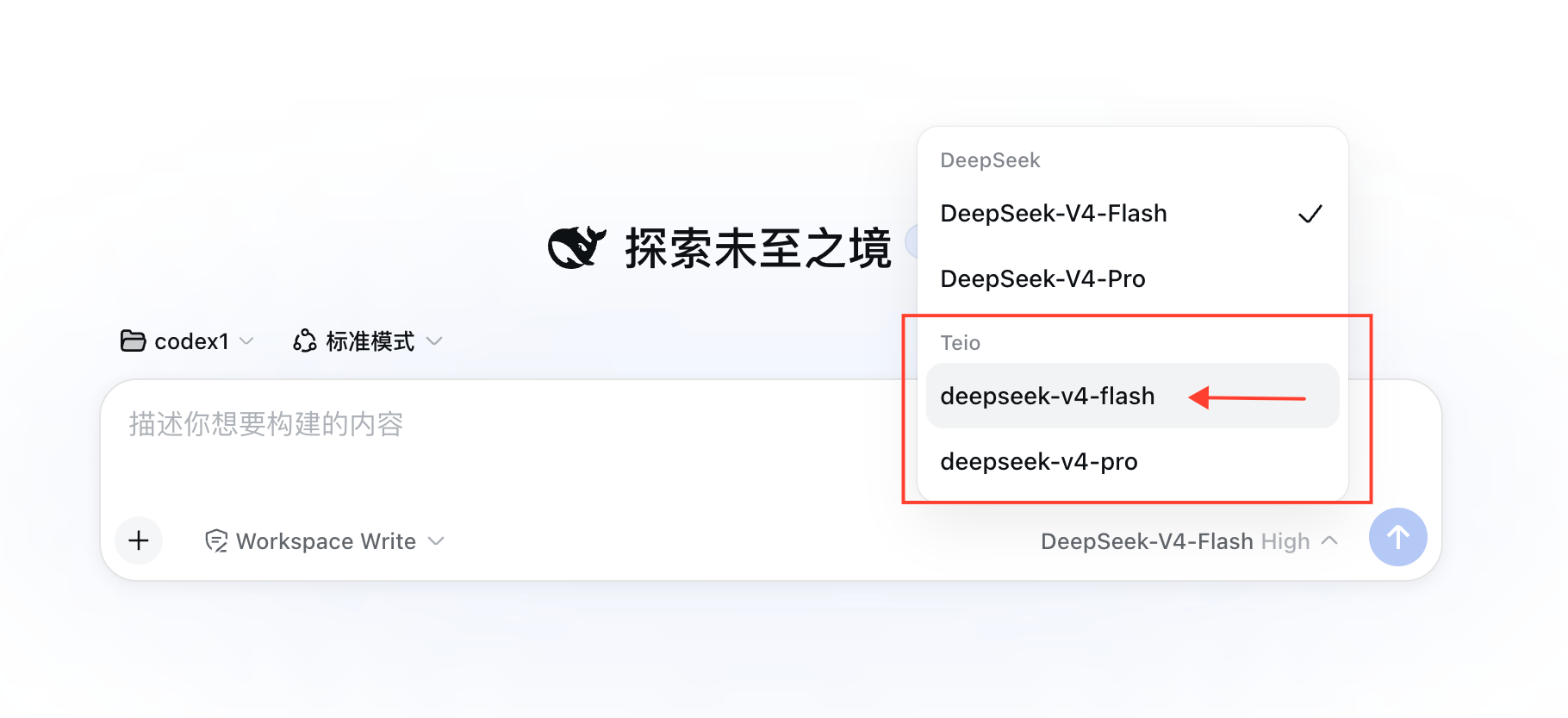
    在聊天页面选择工作区，然后选择 `teio/你的模型名`，即可开始使用。

    <Frame>
      <img src="https://mintcdn.com/cdhyzxwl/vwyEsKokqA4vmmIJ/images/Screenshot-2026-08-17-at-14-29-22.png?fit=max&auto=format&n=vwyEsKokqA4vmmIJ&q=85&s=4daec0340ff8ebaef35b3d961d2ff2b1" alt="Screenshot 2026 08 17 At 14 29 22" width="1820" height="833" data-path="images/Screenshot-2026-08-17-at-14-29-22.png" />
    </Frame>
  </Step>
</Steps>

## 常见问题

<AccordionGroup>
  <Accordion title="启动后打不开页面怎么办？">
    先确认终端里 `npx @deepseek-ai/dsh web` 没有退出，并查看输出中的实际访问地址。默认地址通常是 `http://127.0.0.1:3080`，如果端口被占用，Harness 可能会使用其他端口。
  </Accordion>

  <Accordion title="提示 UNKNOWN_MODEL 怎么办？">
    当前会话选择的模型没有出现在 Teio 提供方的 `models` 列表中，或模型名与 Teio 实际模型名不一致。请查看 [模型与分组](/modelandgroup)，确认 API Key 分组和模型名后重新保存配置。
  </Accordion>

  <Accordion title="获取模型列表返回 401 怎么办？">
    401 通常表示 API Key 无效、没有复制完整，或当前 Key 没有对应分组。先在 Teio 后台检查密钥和分组，再确认 Base URL 使用 `https://teio.me/v1`。
  </Accordion>
</AccordionGroup>

遇到通用 API 配置问题，也可以参考 [通用配置教程](/general-config)。