> ## Documentation Index
> Fetch the complete documentation index at: https://docs.teio.me/llms.txt
> Use this file to discover all available pages before exploring further.

# Kelivo

> Kelivo 是一款跨平台 LLM 对话客户端，支持 OpenAI、Google Gemini、Anthropic 等多种供应商，并提供自定义助手、多模态输入、Markdown 渲染、TTS、MCP 工具、网络搜索和数据备份等功能。

## 前置条件

开始配置前，请先确认已经完成以下准备：

* 已 [创建 API 密钥](/create-token)
* 已了解要使用的模型对应哪个分组；不确定时可查看 [模型与分组](/modelandgroup)

## 安装 Kelivo

<Tabs>
  <Tab title="macOS">
    推荐通过 App Store 安装：

    [打开 Kelivo App Store 页面](https://apps.apple.com/us/app/kelivo/id6752122930)

    也可以从 GitHub Releases 手动下载安装包：

    前往 [Kelivo Releases](https://github.com/Chevey339/kelivo/releases/latest) 页面，下载最新的 `Kelivo_macos_*.dmg` 文件，双击打开后将应用拖入 Applications 文件夹即可。

    <Tip>
      如果下载速度较慢，可以使用 [7ED 静态加速](https://www.7ed.net/) 加速下载，具体使用方式请访问该页面查看。
    </Tip>
  </Tab>

  <Tab title="Windows">
    前往 [Kelivo Releases](https://github.com/Chevey339/kelivo/releases/latest) 页面，下载最新的 `Kelivo_windows_*_setup.exe` 安装包，双击按提示完成安装。

    如果你想使用免安装版本，也可以下载 `Kelivo_windows_*.zip`，解压后启动 Kelivo。

    <Tip>
      如果下载速度较慢，可以使用 [7ED 静态加速](https://www.7ed.net/) 加速下载，具体使用方式请访问该页面查看。
    </Tip>
  </Tab>
</Tabs>

## 配置 Teio

Kelivo 支持添加 OpenAI Compatible 等自定义供应商。下面以添加 Teio 为例，说明如何完成配置。

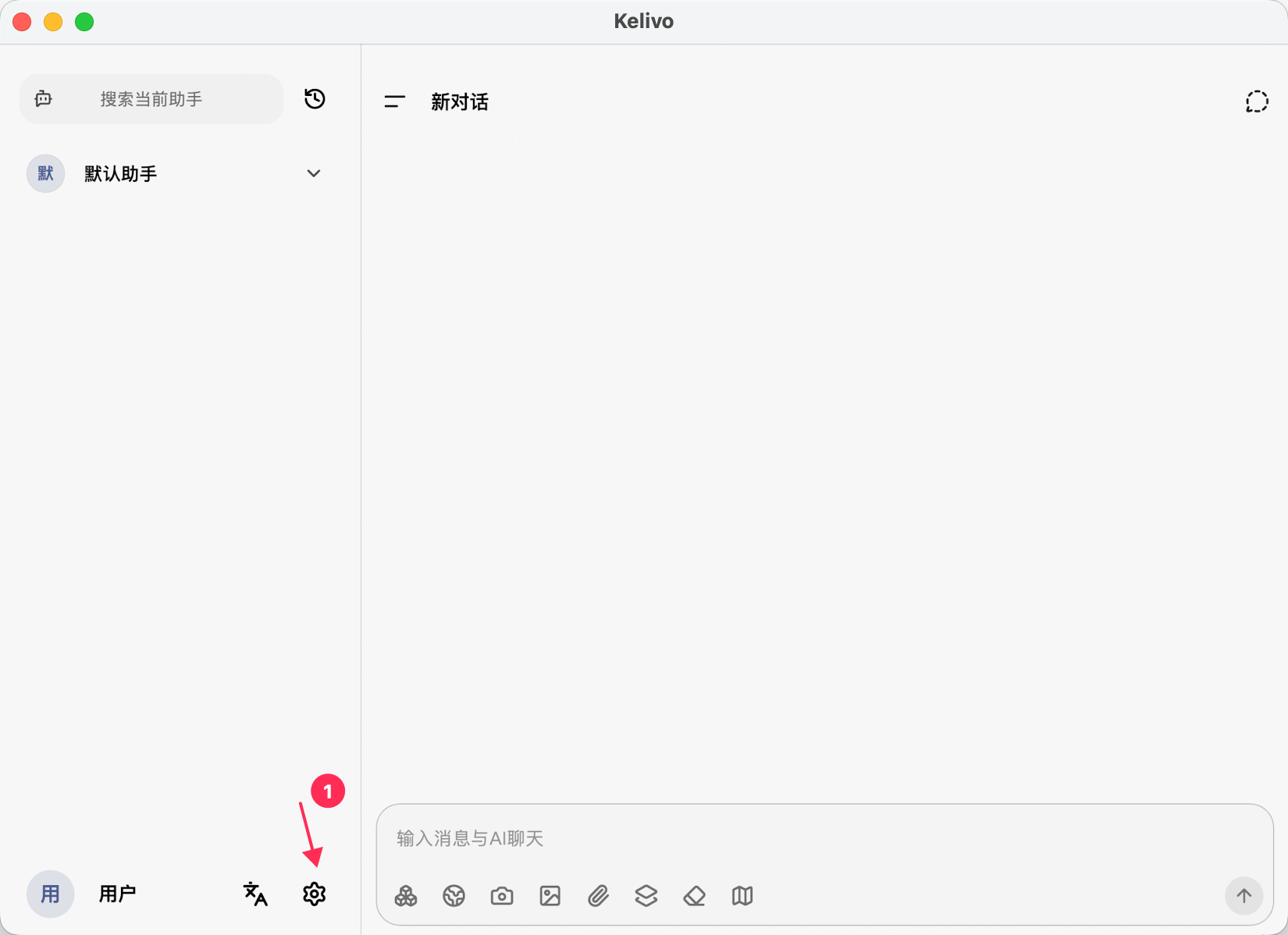
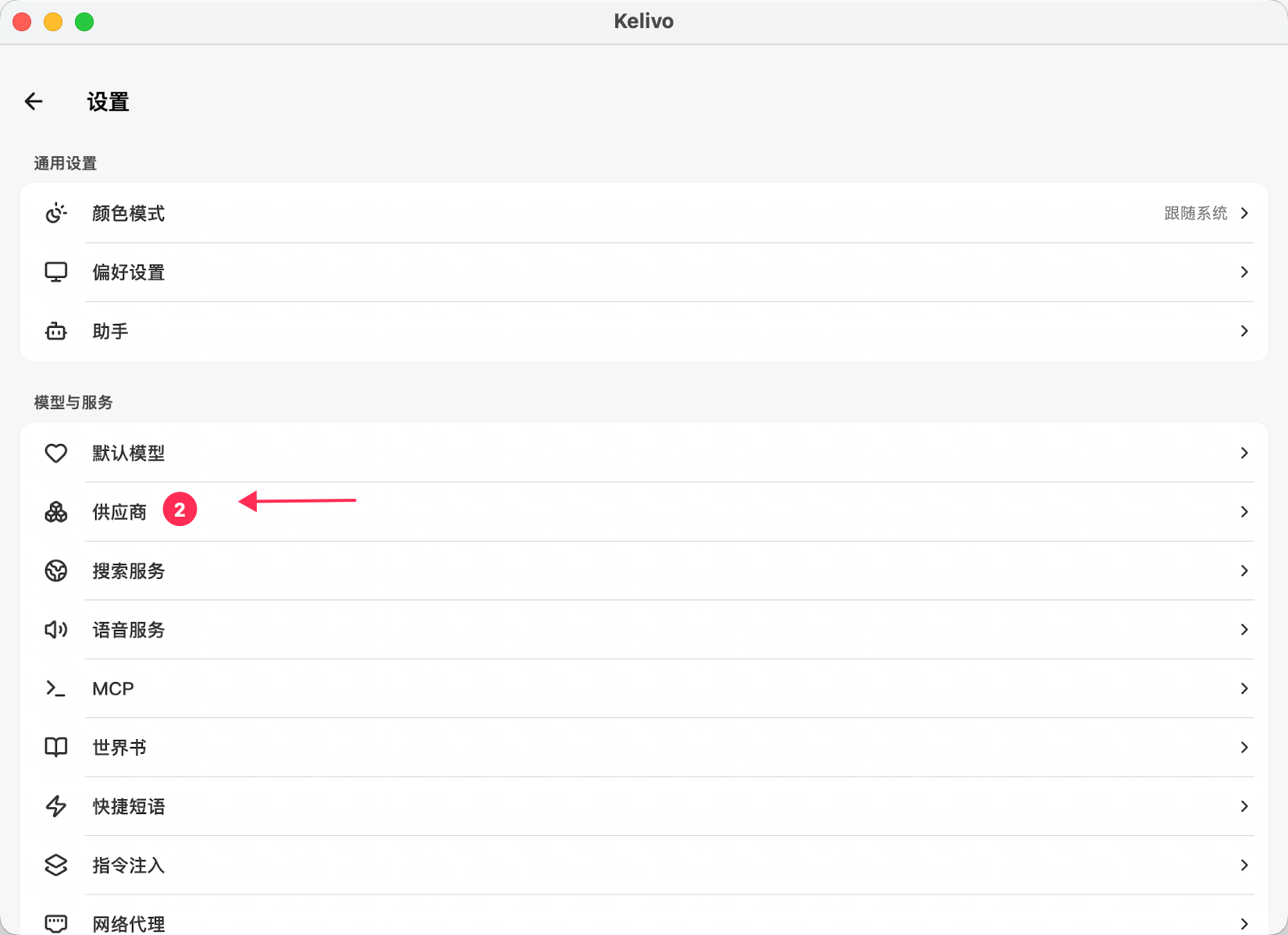
1. 打开设置，进入供应商或模型配置页面。
   <Frame>
     <img src="https://mintcdn.com/cdhyzxwl/KcQdrqgl_-3ll2pV/images/Screenshot-2026-08-03-at-11-53-48.png?fit=max&auto=format&n=KcQdrqgl_-3ll2pV&q=85&s=1327f1b2a936d9ea302794c9a73d5949" alt="Screenshot 2026 08 03 At 11 53 48" width="1650" height="1198" data-path="images/Screenshot-2026-08-03-at-11-53-48.png" />
   </Frame>
   <Frame>
     <img src="https://mintcdn.com/cdhyzxwl/KcQdrqgl_-3ll2pV/images/Screenshot-2026-08-03-at-11-54-22.png?fit=max&auto=format&n=KcQdrqgl_-3ll2pV&q=85&s=de682175422c17fbf4de2429aeb846b2" alt="Screenshot 2026 08 03 At 11 54 22" width="1650" height="1198" data-path="images/Screenshot-2026-08-03-at-11-54-22.png" />
   </Frame>
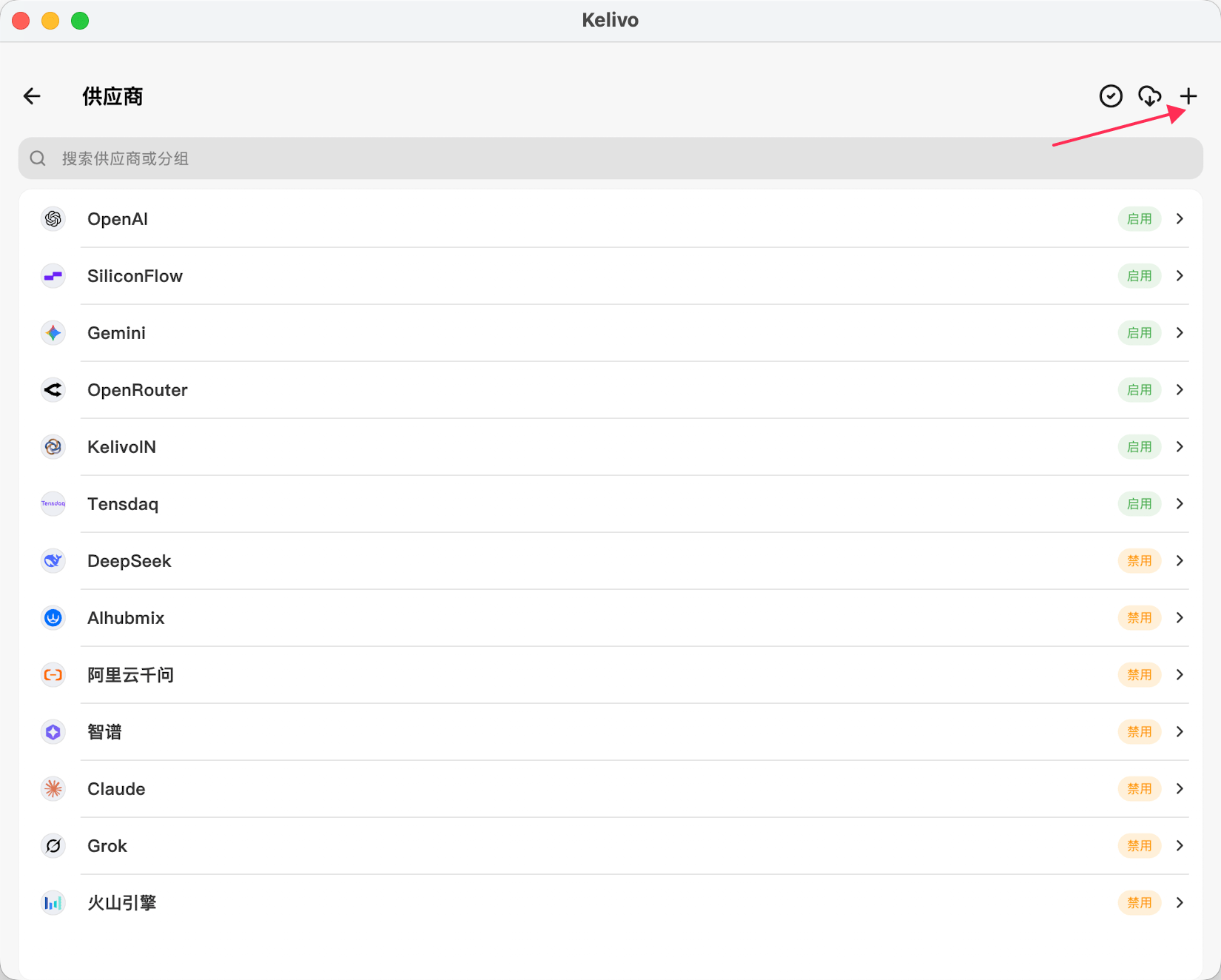
2. 新增一个自定义供应商。
   <Frame>
     <img src="https://mintcdn.com/cdhyzxwl/KcQdrqgl_-3ll2pV/images/Screenshot-2026-08-03-at-11-56-42.png?fit=max&auto=format&n=KcQdrqgl_-3ll2pV&q=85&s=290fea888402790b516b33d19f22a357" alt="Screenshot 2026 08 03 At 11 56 42" width="1650" height="1324" data-path="images/Screenshot-2026-08-03-at-11-56-42.png" />
   </Frame>
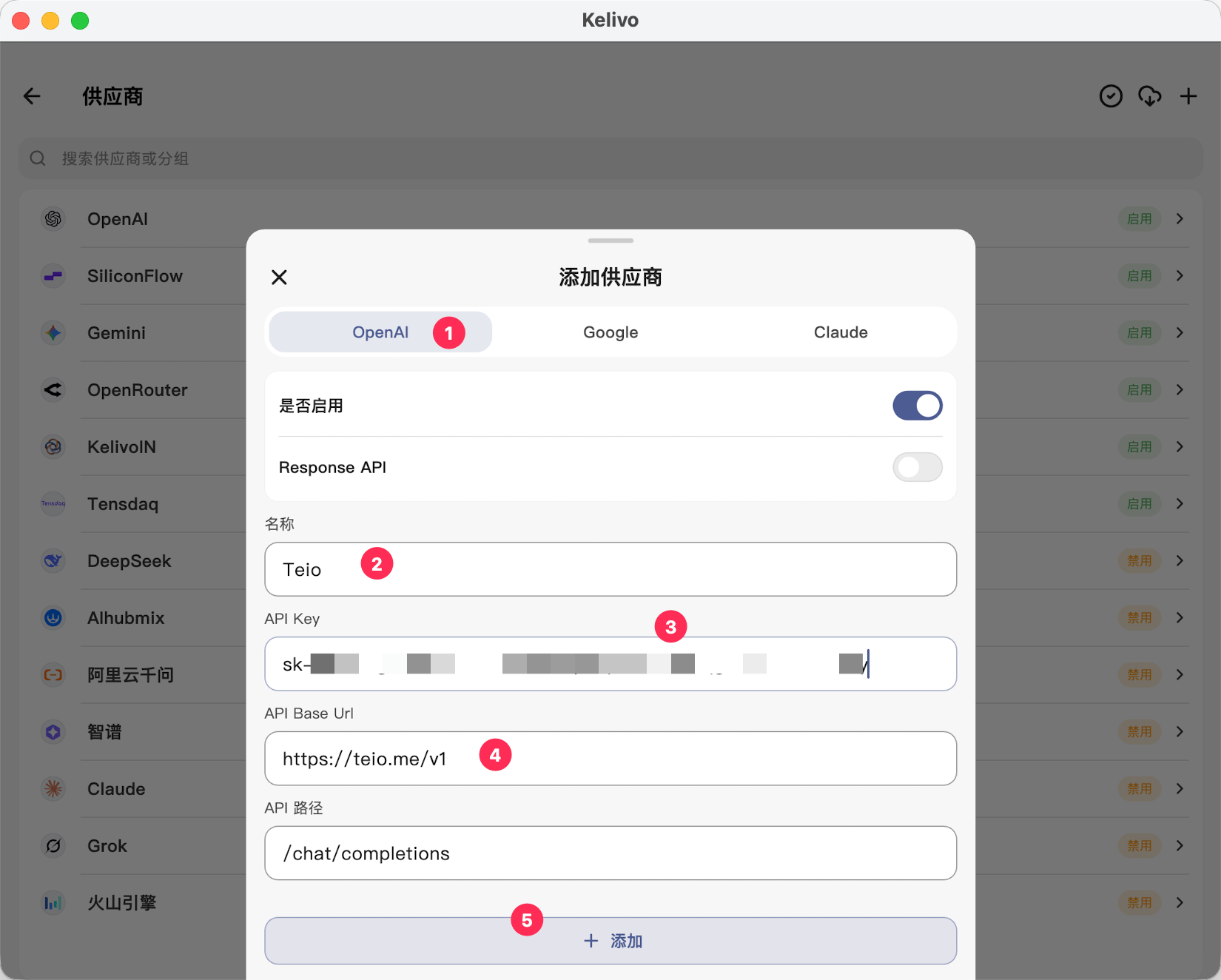
3. 按照以下内容填写供应商信息：
   * **分组**：`OpenAI`，Claude 模型也可以选择此分组
   * **名称**：`Teio`
   * **API Base URL**：`https://teio.me/v1`
   * **API Key**：`你的密钥`
   * 填写完成后，点击添加
   <Frame>
     <img src="https://mintcdn.com/cdhyzxwl/KcQdrqgl_-3ll2pV/images/Screenshot-2026-08-03-at-11-59-26.png?fit=max&auto=format&n=KcQdrqgl_-3ll2pV&q=85&s=8db868898ab1d0aa2667d051f798b4b9" alt="Screenshot 2026 08 03 At 11 59 26" width="1650" height="1324" data-path="images/Screenshot-2026-08-03-at-11-59-26.png" />
   </Frame>
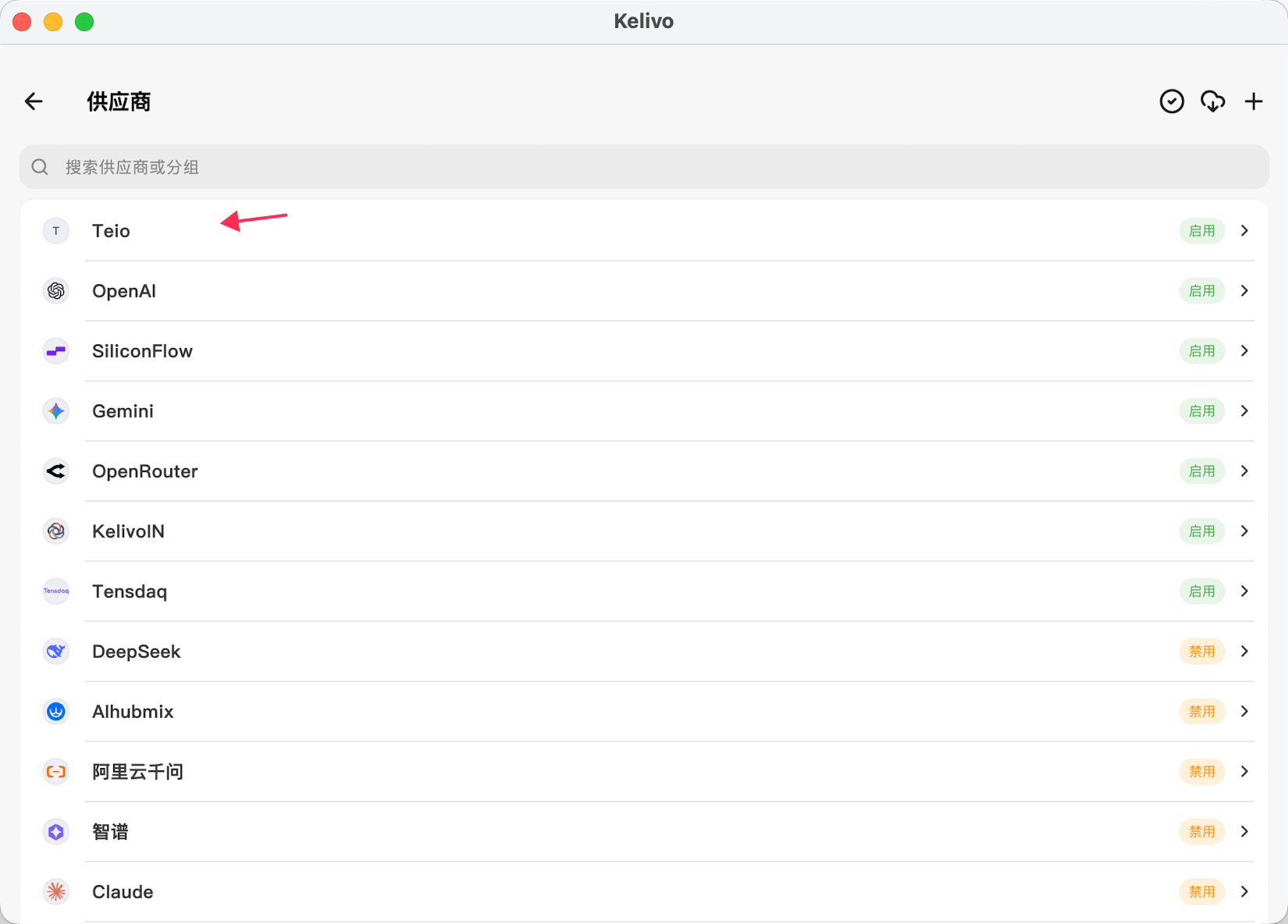
4. 回到设置页面，选择 `Teio`。
   <Frame>
     <img src="https://mintcdn.com/cdhyzxwl/KcQdrqgl_-3ll2pV/images/Screenshot-2026-08-03-at-12-07-50.png?fit=max&auto=format&n=KcQdrqgl_-3ll2pV&q=85&s=182fad078a8f61752ae5527fed0a93ff" alt="Screenshot 2026 08 03 At 12 07 50" width="1650" height="1184" data-path="images/Screenshot-2026-08-03-at-12-07-50.png" />
   </Frame>
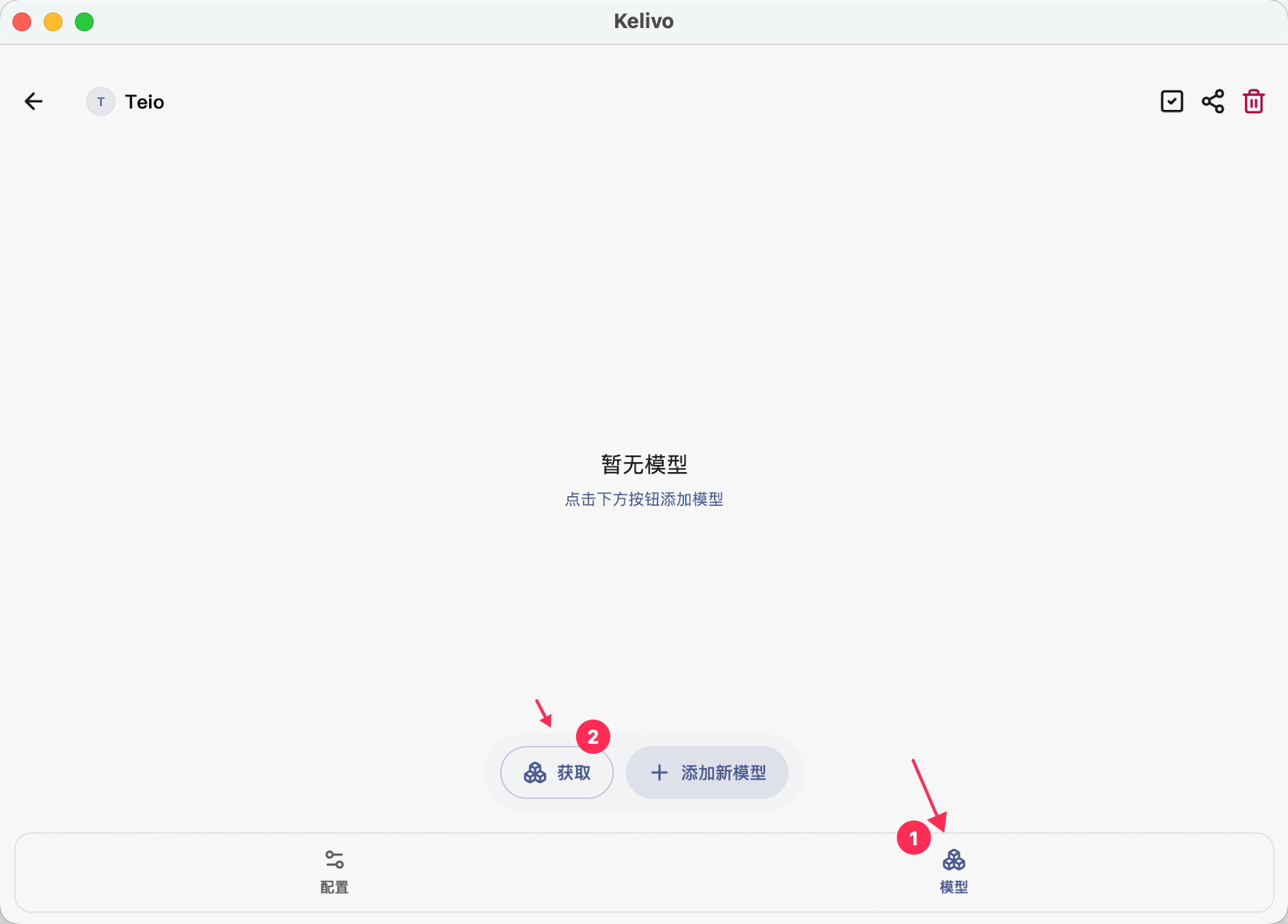
5. 切换到模型配置页面，点击 **获取** 拉取模型列表。
   <Frame>
     <img src="https://mintcdn.com/cdhyzxwl/KcQdrqgl_-3ll2pV/images/Screenshot-2026-08-03-at-12-12-45.png?fit=max&auto=format&n=KcQdrqgl_-3ll2pV&q=85&s=ad4dde9b4852e5e222ebe9edd789cf7e" alt="Screenshot 2026 08 03 At 12 12 45" width="1650" height="1184" data-path="images/Screenshot-2026-08-03-at-12-12-45.png" />
   </Frame>
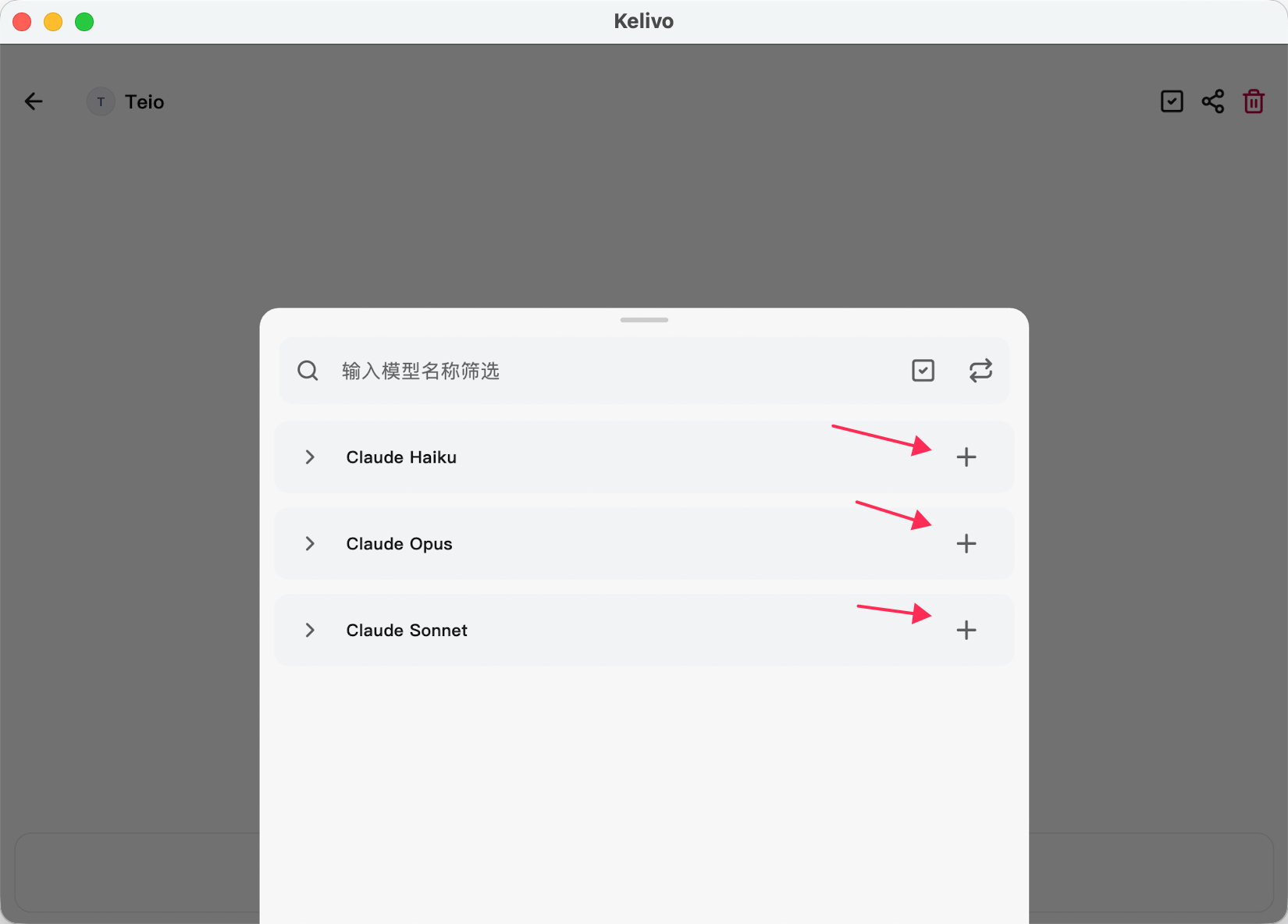
6. 默认勾选全部模型。
   <Frame>
     <img src="https://mintcdn.com/cdhyzxwl/KcQdrqgl_-3ll2pV/images/Screenshot-2026-08-03-at-12-13-41.png?fit=max&auto=format&n=KcQdrqgl_-3ll2pV&q=85&s=c903e07d757f3dcdb6be0feff4447d1e" alt="Screenshot 2026 08 03 At 12 13 41" width="1650" height="1184" data-path="images/Screenshot-2026-08-03-at-12-13-41.png" />
   </Frame>
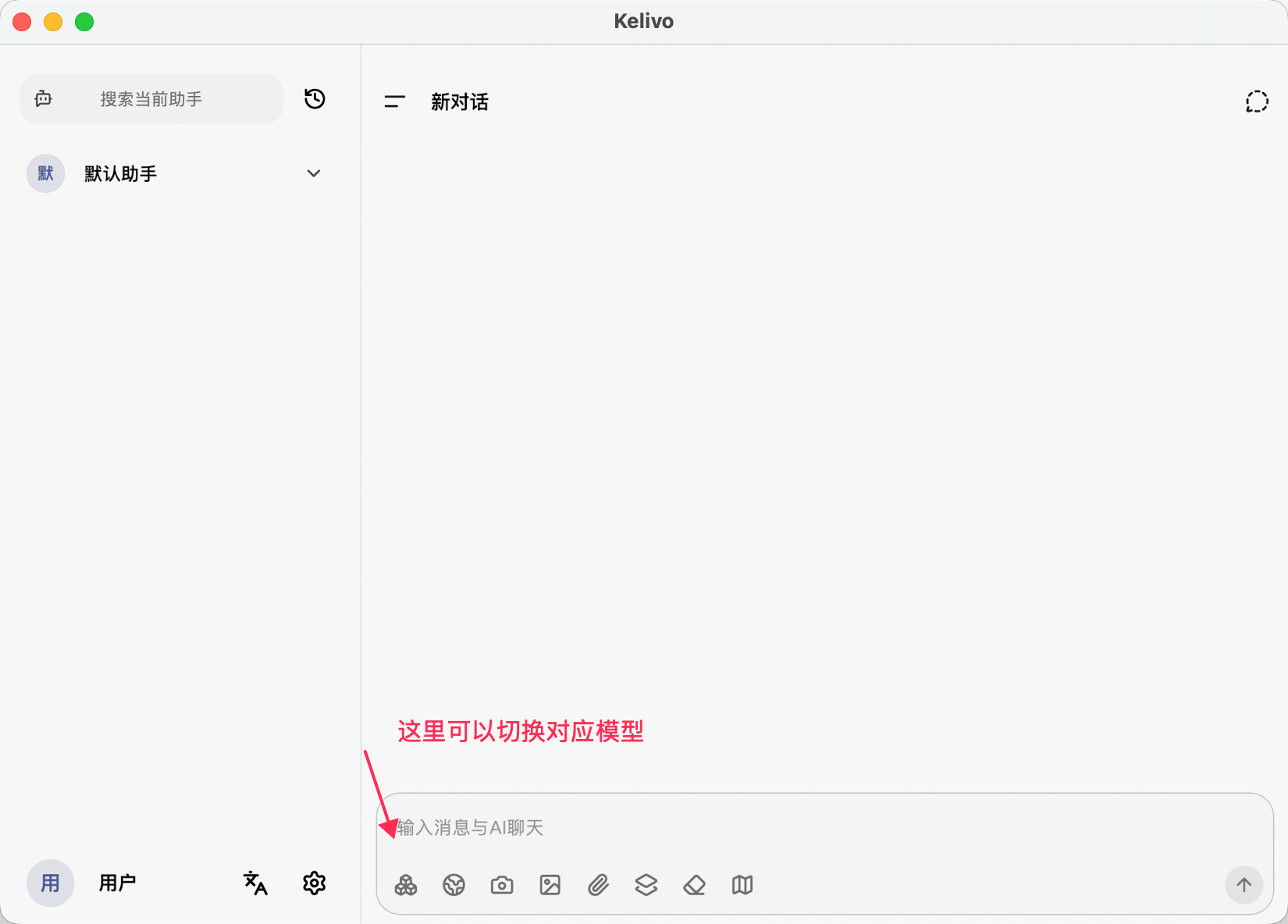
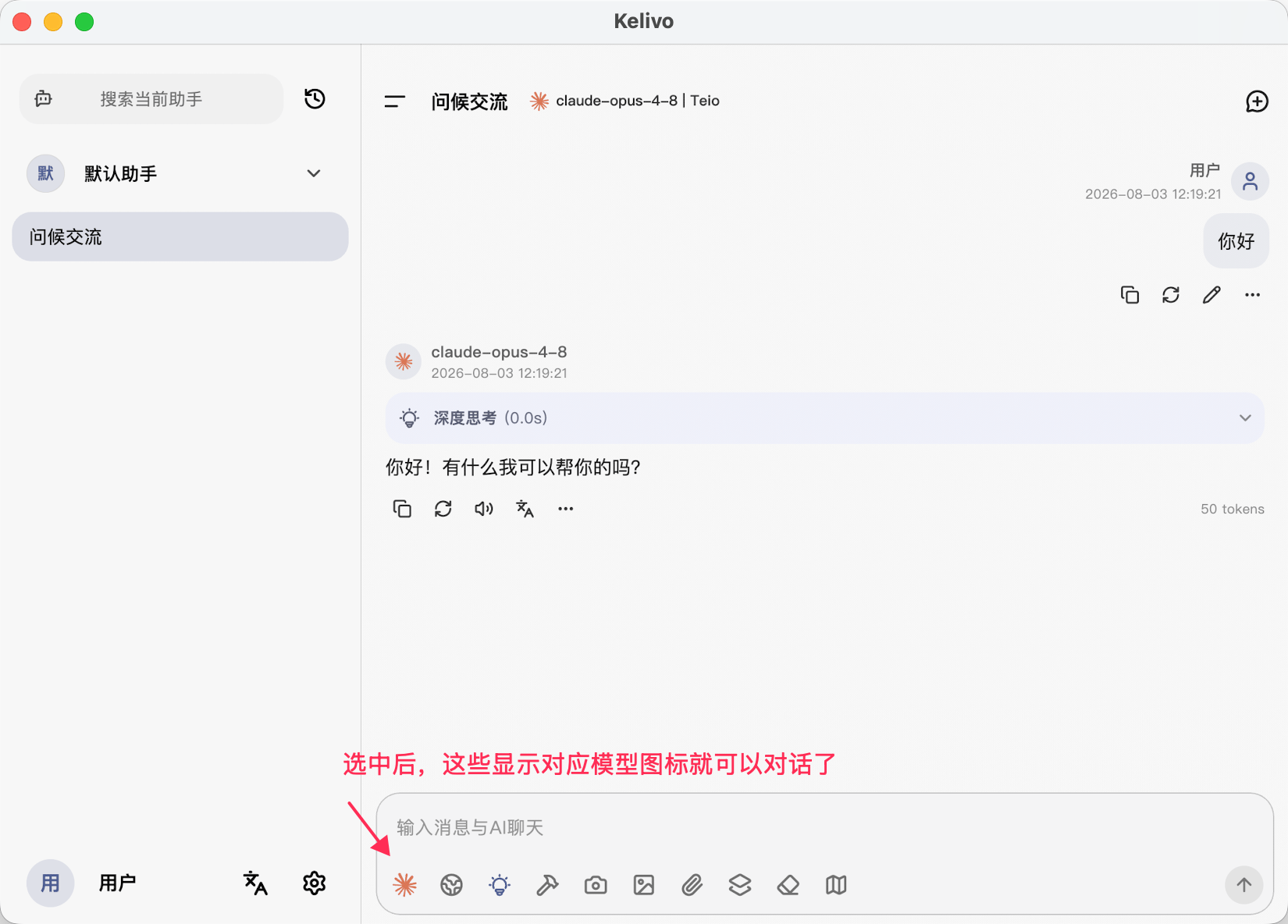
7. 回到聊天页面。
   <Frame>
     <img src="https://mintcdn.com/cdhyzxwl/KcQdrqgl_-3ll2pV/images/Screenshot-2026-08-03-at-12-17-17.png?fit=max&auto=format&n=KcQdrqgl_-3ll2pV&q=85&s=1833060eaafc407304f9610178f73b8b" alt="Screenshot 2026 08 03 At 12 17 17" width="1650" height="1184" data-path="images/Screenshot-2026-08-03-at-12-17-17.png" />
   </Frame>
8. 现在可以开始正常对话。
   <Frame>
     <img src="https://mintcdn.com/cdhyzxwl/wllM4R5EnRFm17oW/images/Screenshot-2026-08-03-at-12-20-36.png?fit=max&auto=format&n=wllM4R5EnRFm17oW&q=85&s=681b6c21c39fb9e92073dec19eadb49d" alt="Screenshot 2026 08 03 At 12 20 36" width="1650" height="1184" data-path="images/Screenshot-2026-08-03-at-12-20-36.png" />
   </Frame>

## 常见问题

<AccordionGroup>
  <Accordion title="获取模型列表失败">
    请检查 API Key 是否来自正确分组，并确认 API 地址填写完整。OpenAI 接口需要填写 `https://teio.me/v1`。
  </Accordion>

  <Accordion title="macOS 无法打开 dmg 版本">
    优先使用 App Store 版本。如果仍要使用 GitHub Releases 的 `.dmg`，请确认下载的是 macOS 安装包，并在系统设置中允许打开该应用。
  </Accordion>
</AccordionGroup>

更多 Kelivo 功能和下载信息可以查看 [Kelivo 官方仓库](https://github.com/Chevey339/kelivo)。